Invite staff and enter time off
Give your team their own logins. Staff see their appointments and enter their own time off – you keep the overview and decide when customer appointments are affected.
15 steps about 5 min
Invite a person
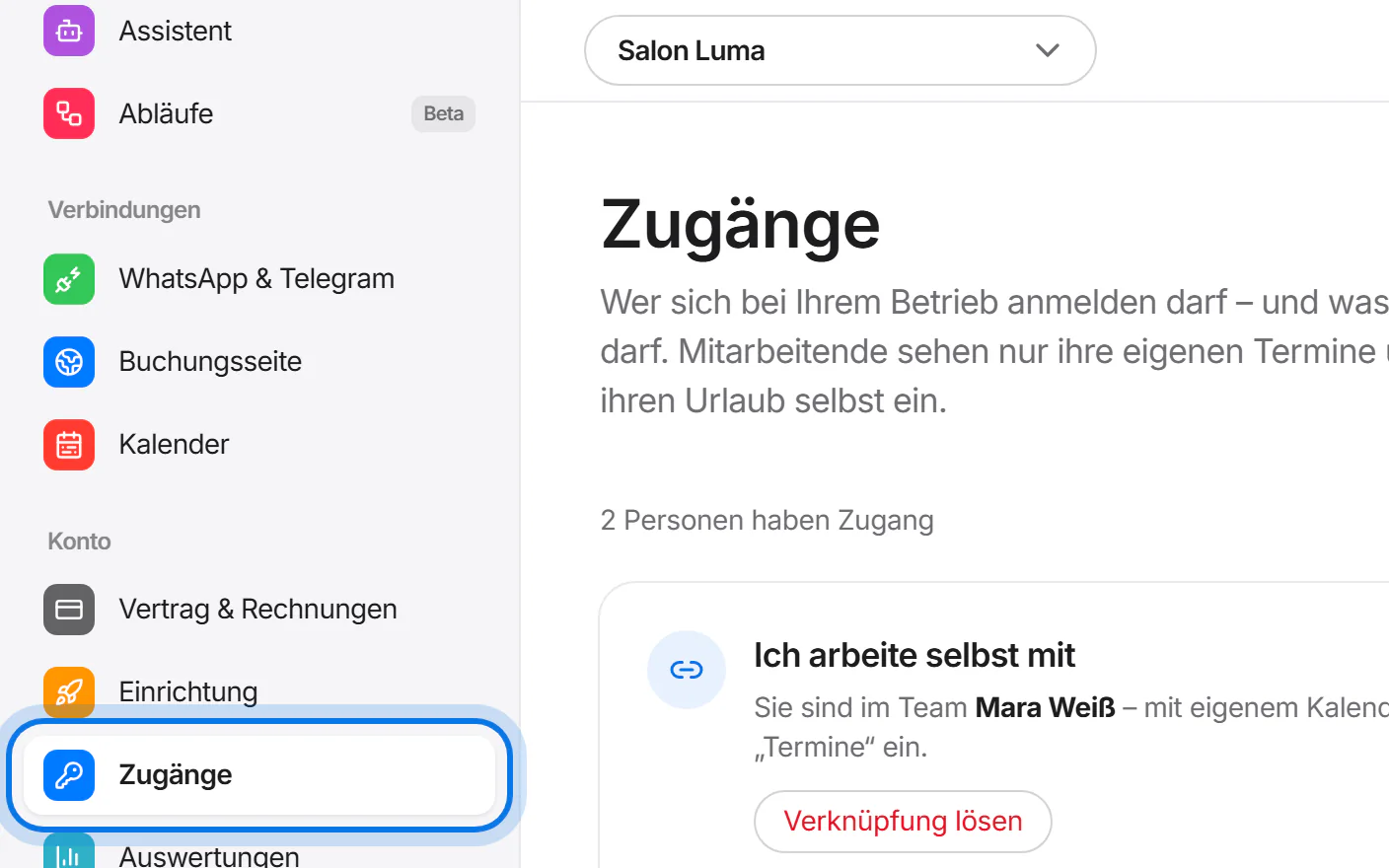
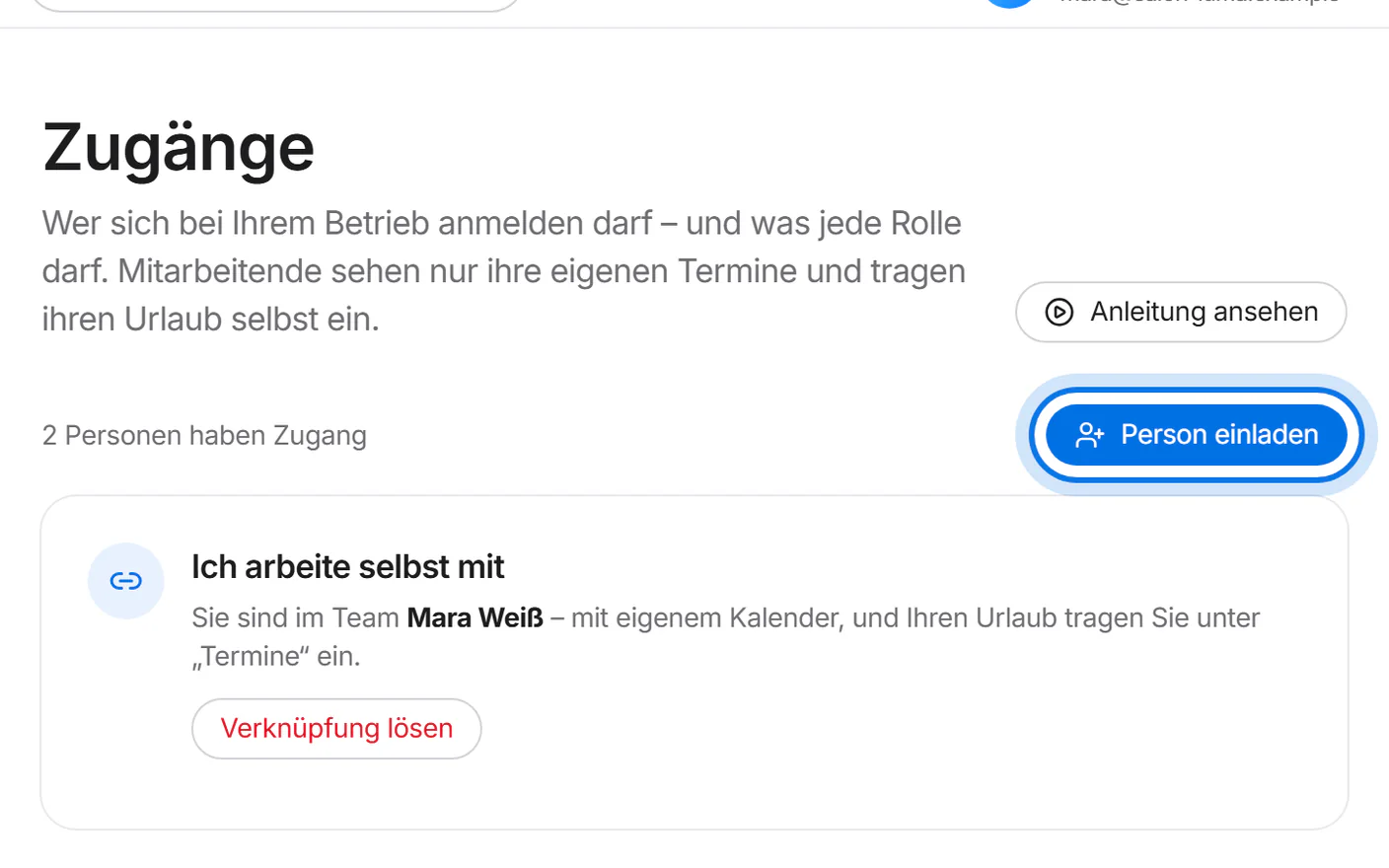
Open “Zugänge” (access) in the menu on the left.
Tap “Person einladen” (invite a person).
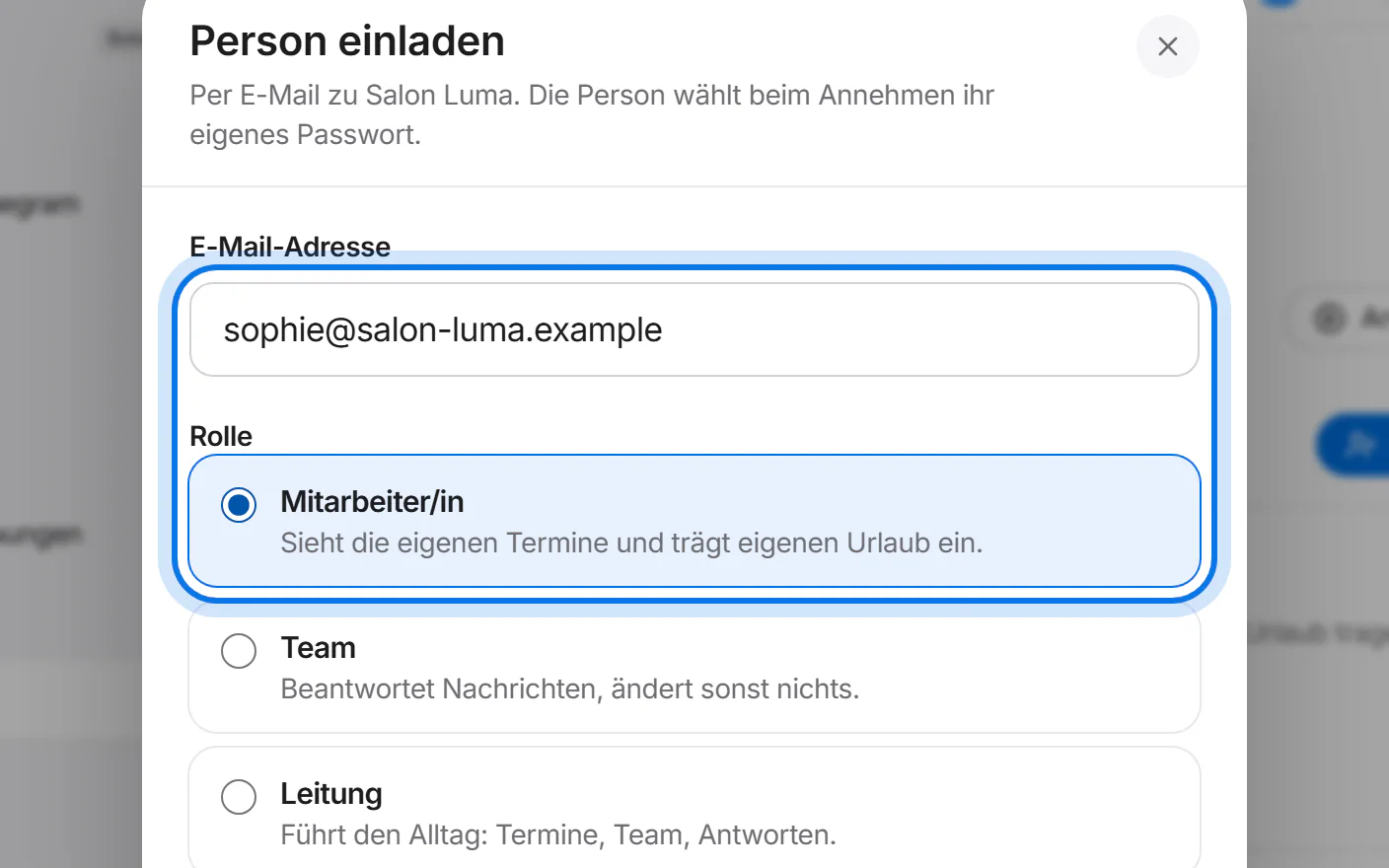
Enter the email address and choose the role – for your team usually “Mitarbeiter/in” (staff member).
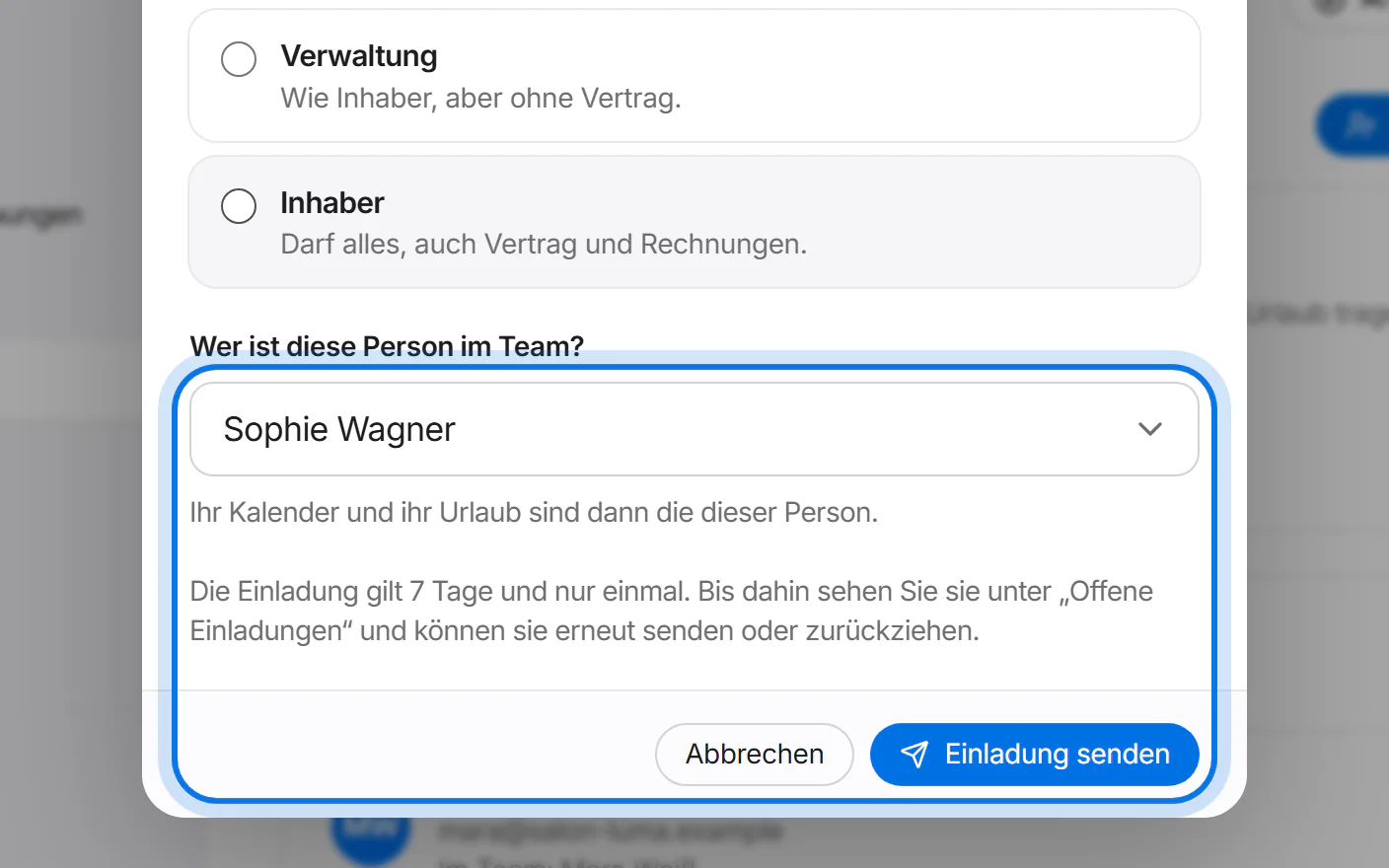
Under “Wer ist diese Person im Team?” (who is this person in the team?), choose the person – their calendar and time off are then that person's. Tap “Einladung senden” (send invitation): the person gets an email with a link that is valid for 7 days and only once.
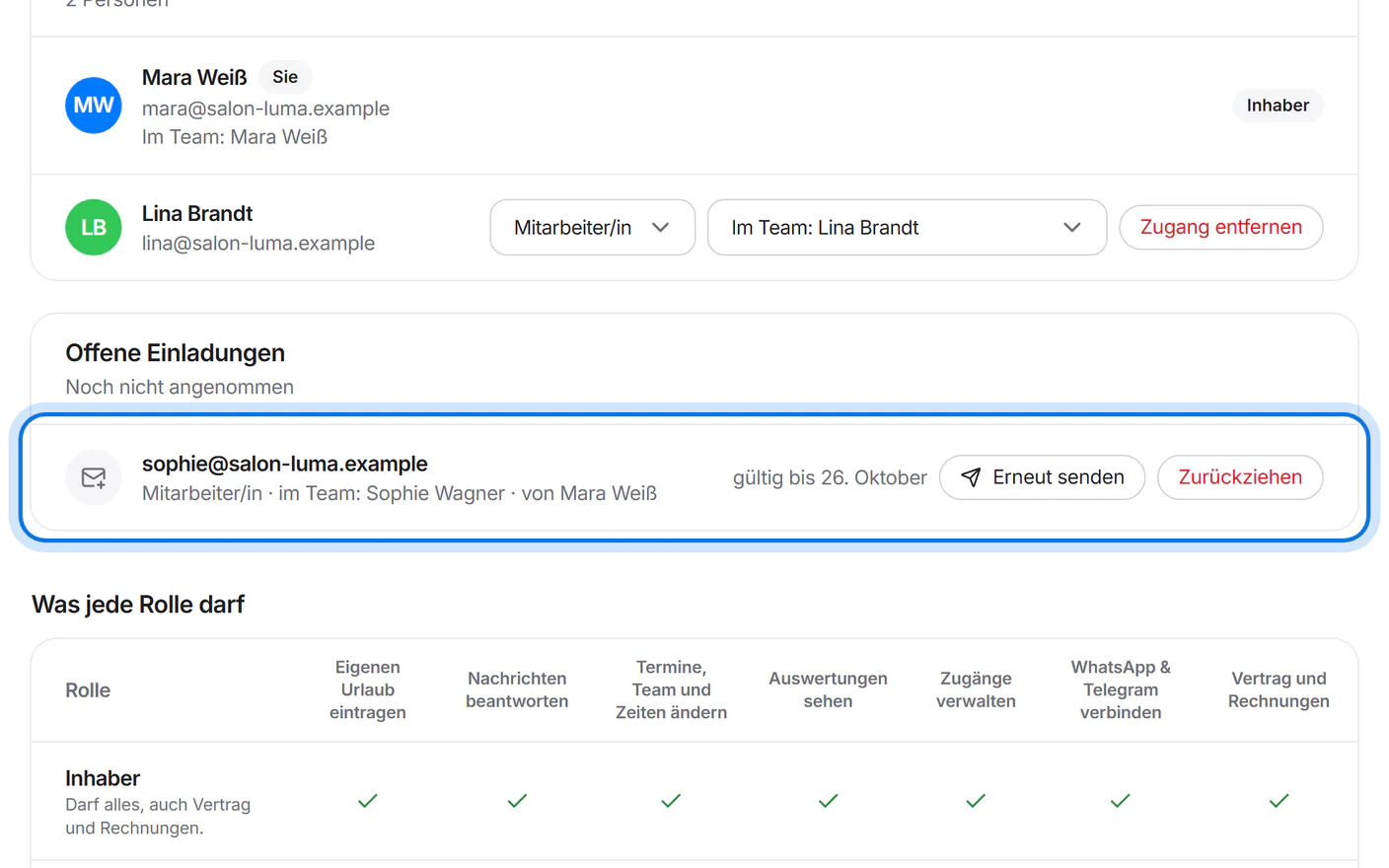
Until the invitation is accepted, it is listed under “Offene Einladungen” (open invitations). There you can send it again or withdraw it.
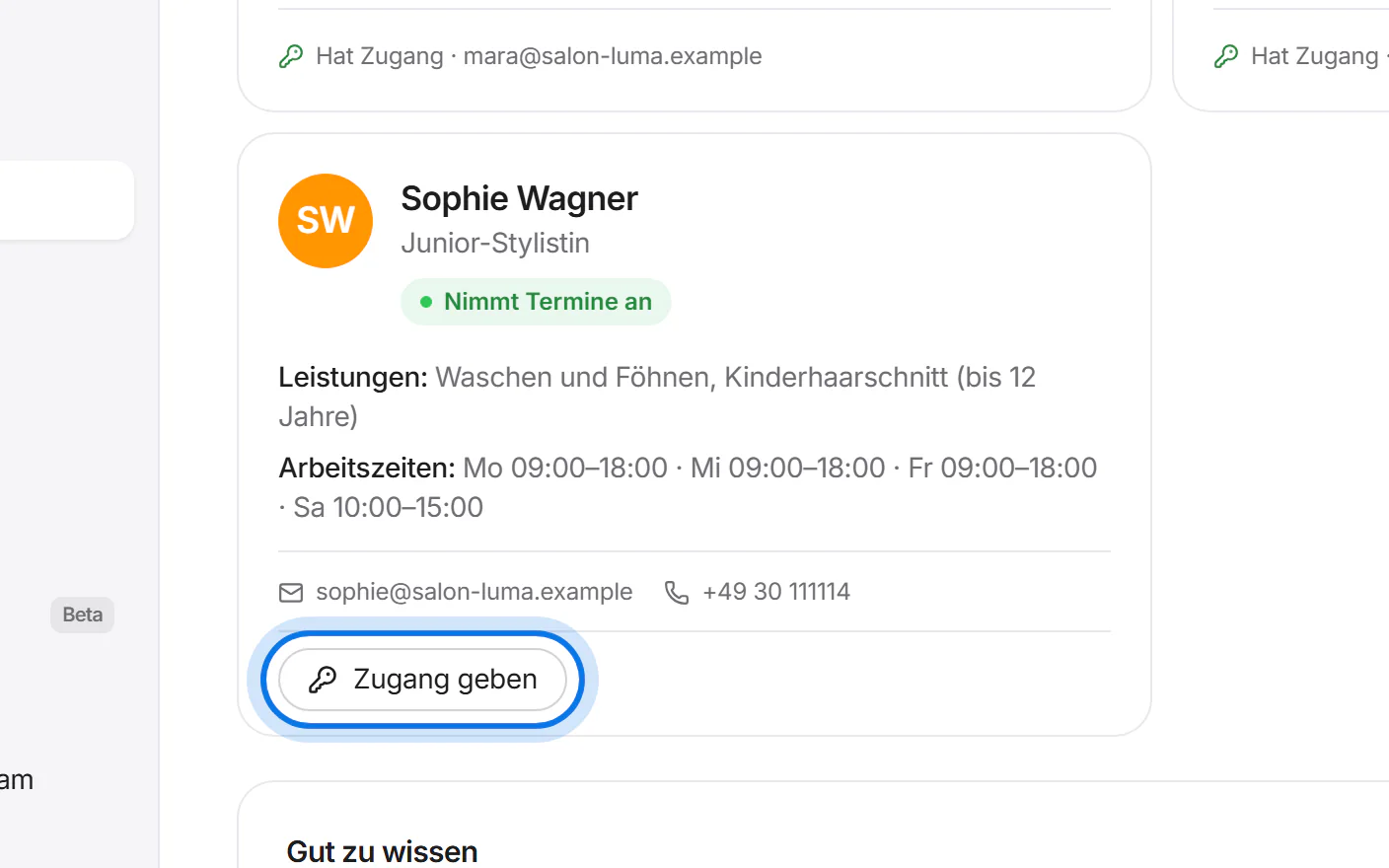
Or under “Team”: tap “Zugang geben” (give access) on the person's card – email address and person are then filled in already.
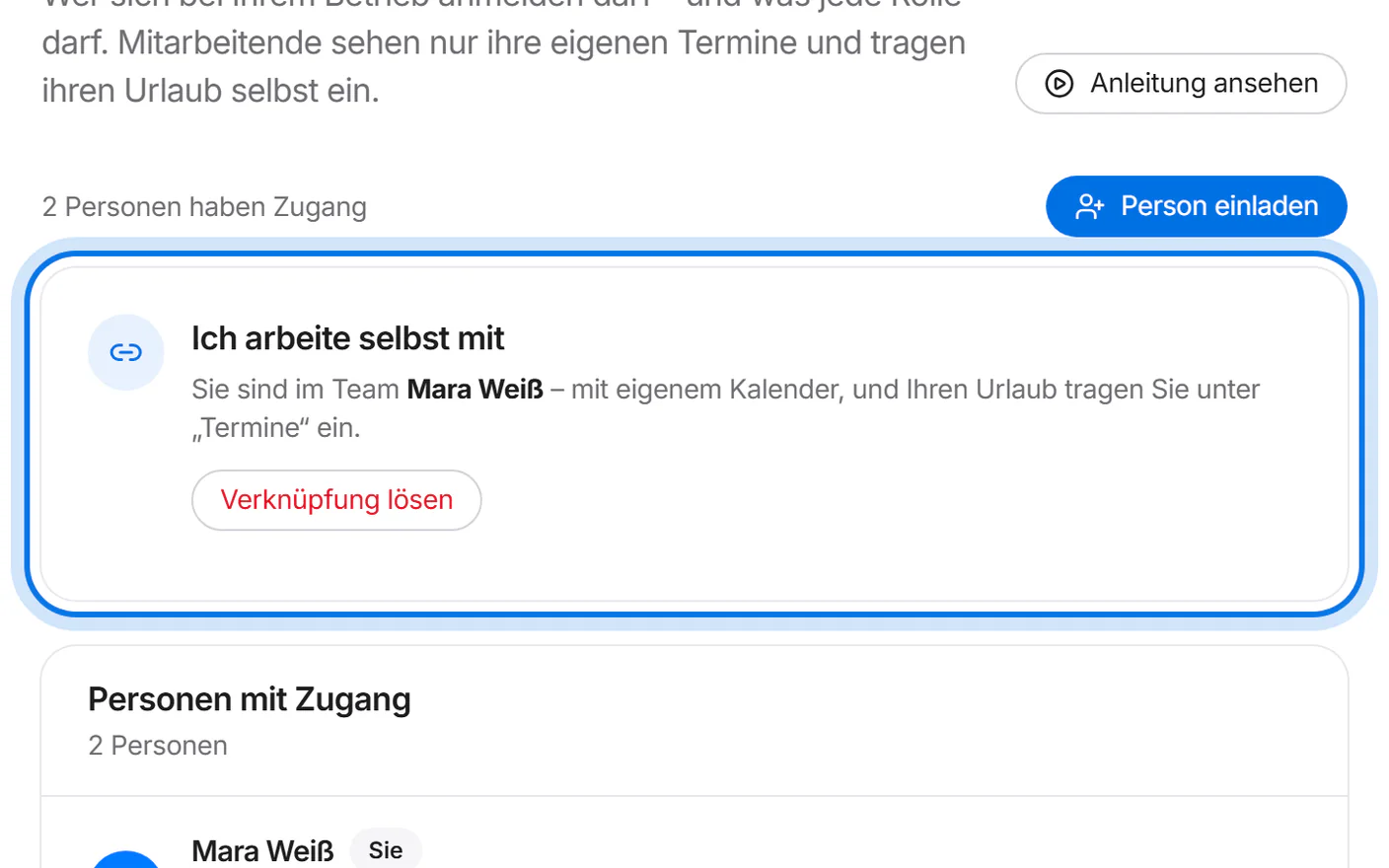
Do you work with customers yourself? Under “Ich arbeite selbst mit” (I work here too), link your login with your person in the team – then you enter your time off like everyone else.


Accept the invitation
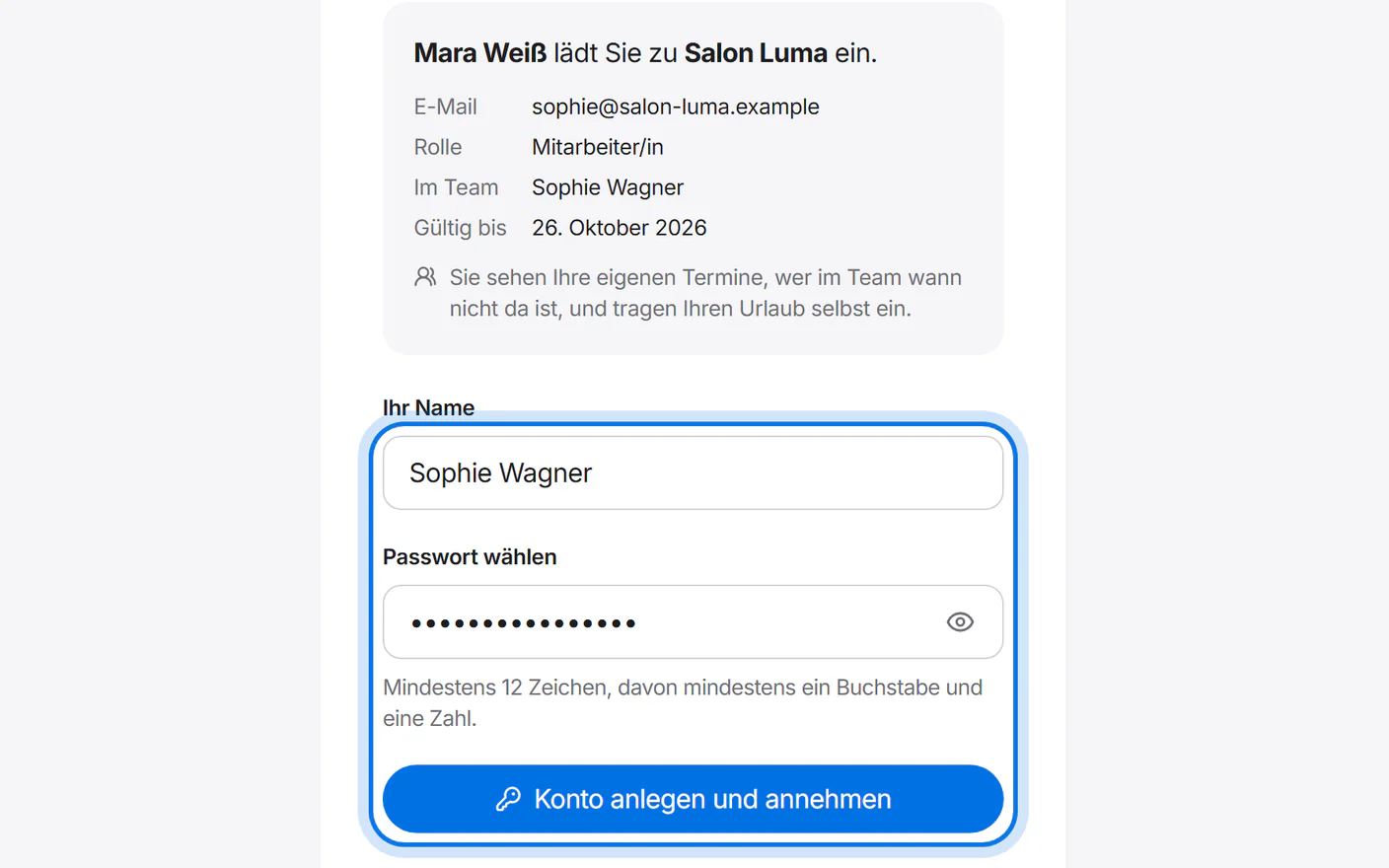
Your team member taps “Einladung annehmen” (accept invitation) in the email. If they are new here, they enter their name, choose a password with at least 12 characters and tap “Konto anlegen und annehmen” (create account and accept).

What staff see
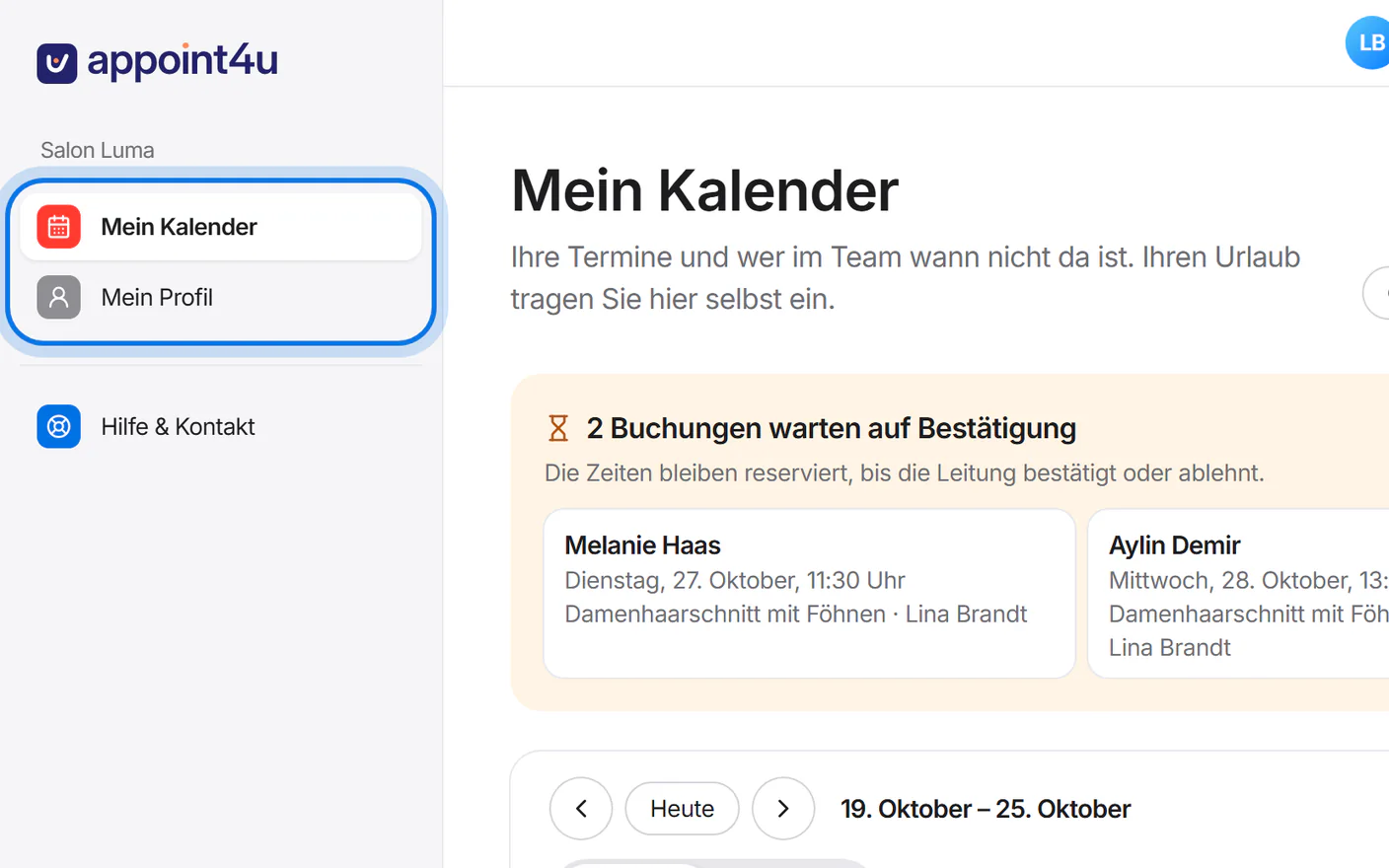
Staff see “Mein Kalender” (my calendar) and “Mein Profil” (my profile): their own appointments and who in the team is away when. They don't see messages, settings or your contract.

Enter time off
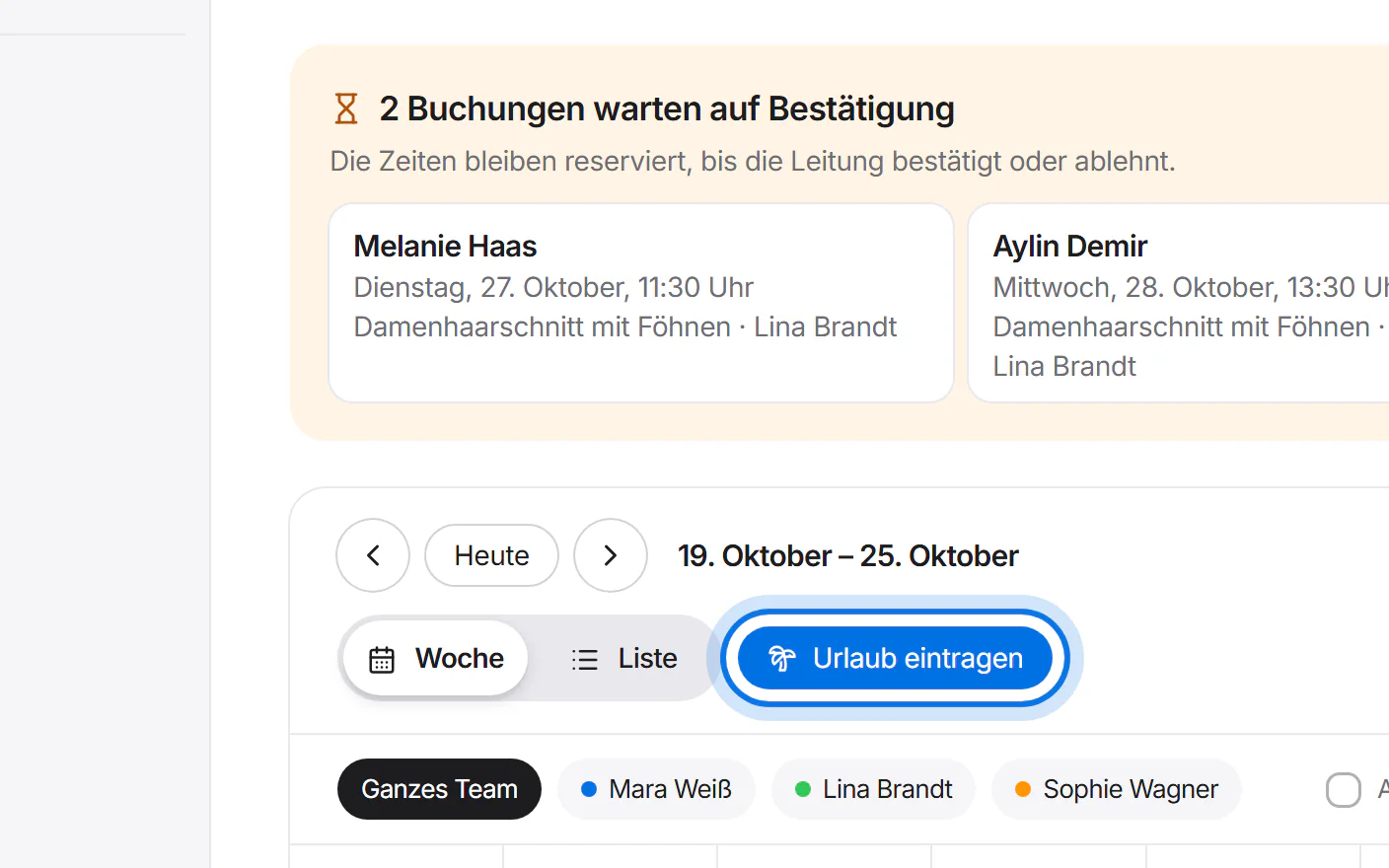
Under “Mein Kalender”, they tap “Urlaub eintragen” (enter time off).
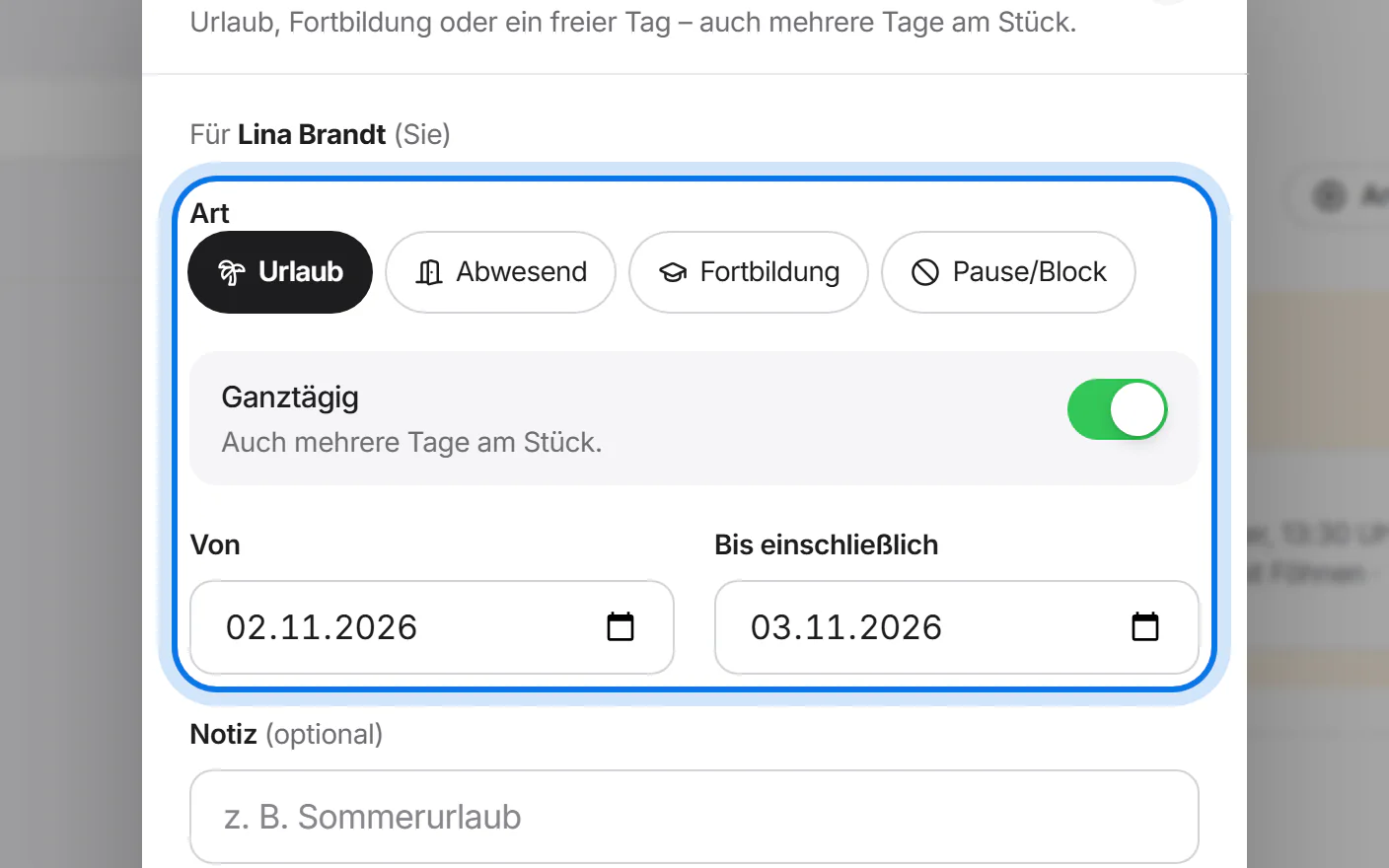
They choose the type – Urlaub (holiday), Abwesend (away), Fortbildung (training) or Pause/Block – whether it is all day or by the hour, and then the days or the time.
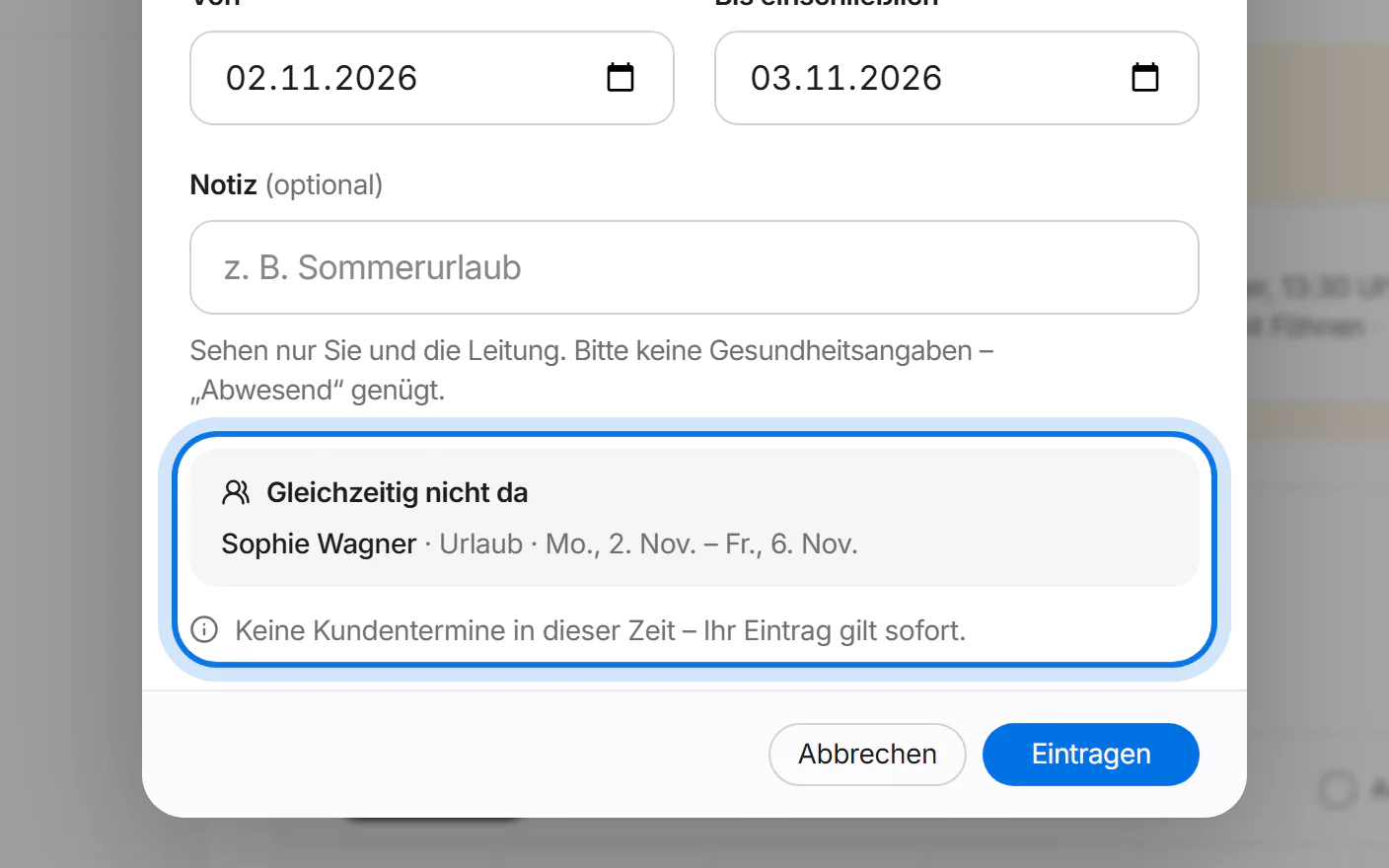
Below, they see who else is away at the same time. If there are no customer appointments in that time, the entry applies at once: the assistant and the booking page stop offering that time.
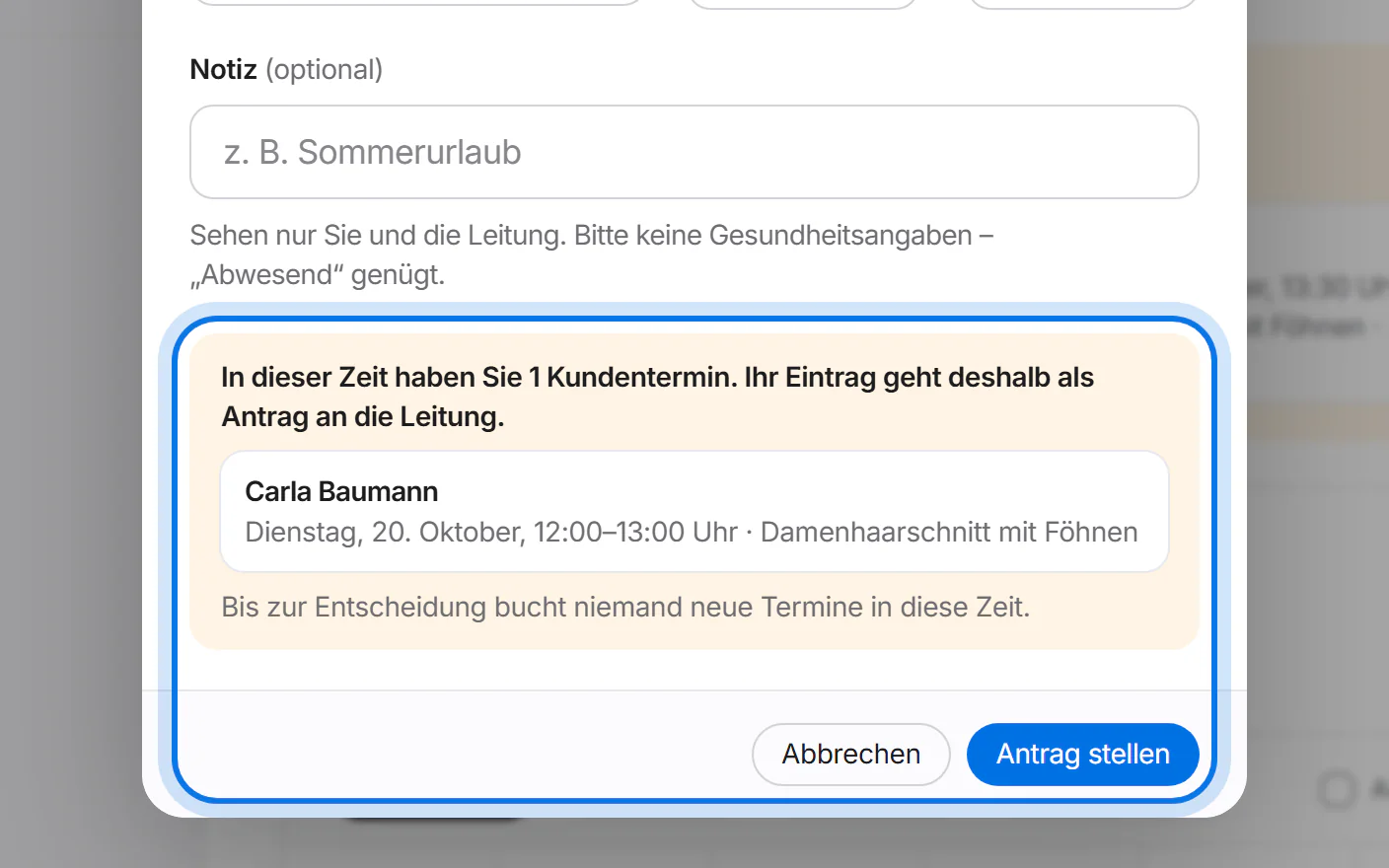
If customer appointments fall into that time, the entry becomes a request: they tap “Antrag stellen” (submit request). Until it is decided, nobody can book new appointments in that time.


Decide on requests
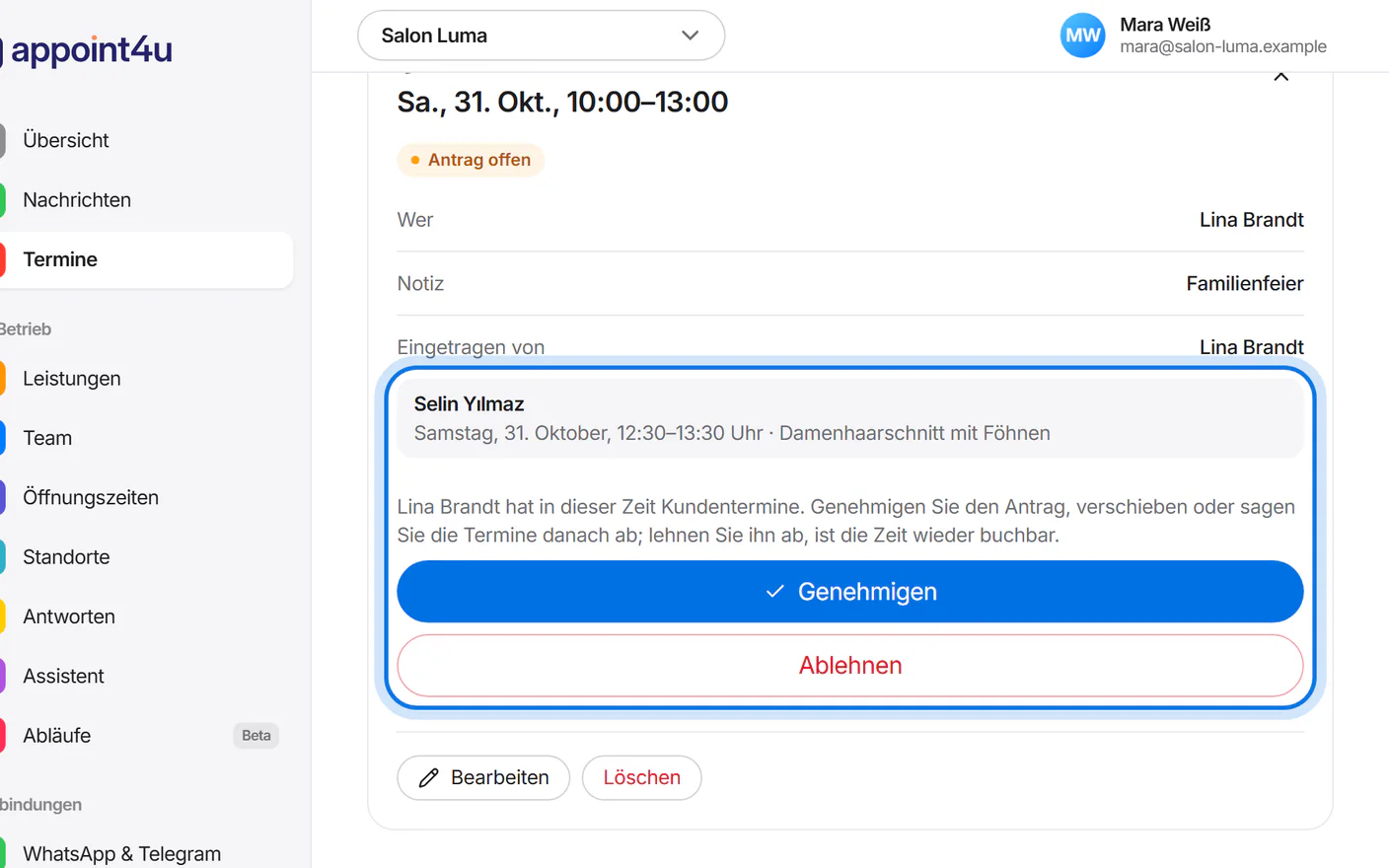
You get an email about it and see the request at the top of the calendar under “Termine” (appointments).
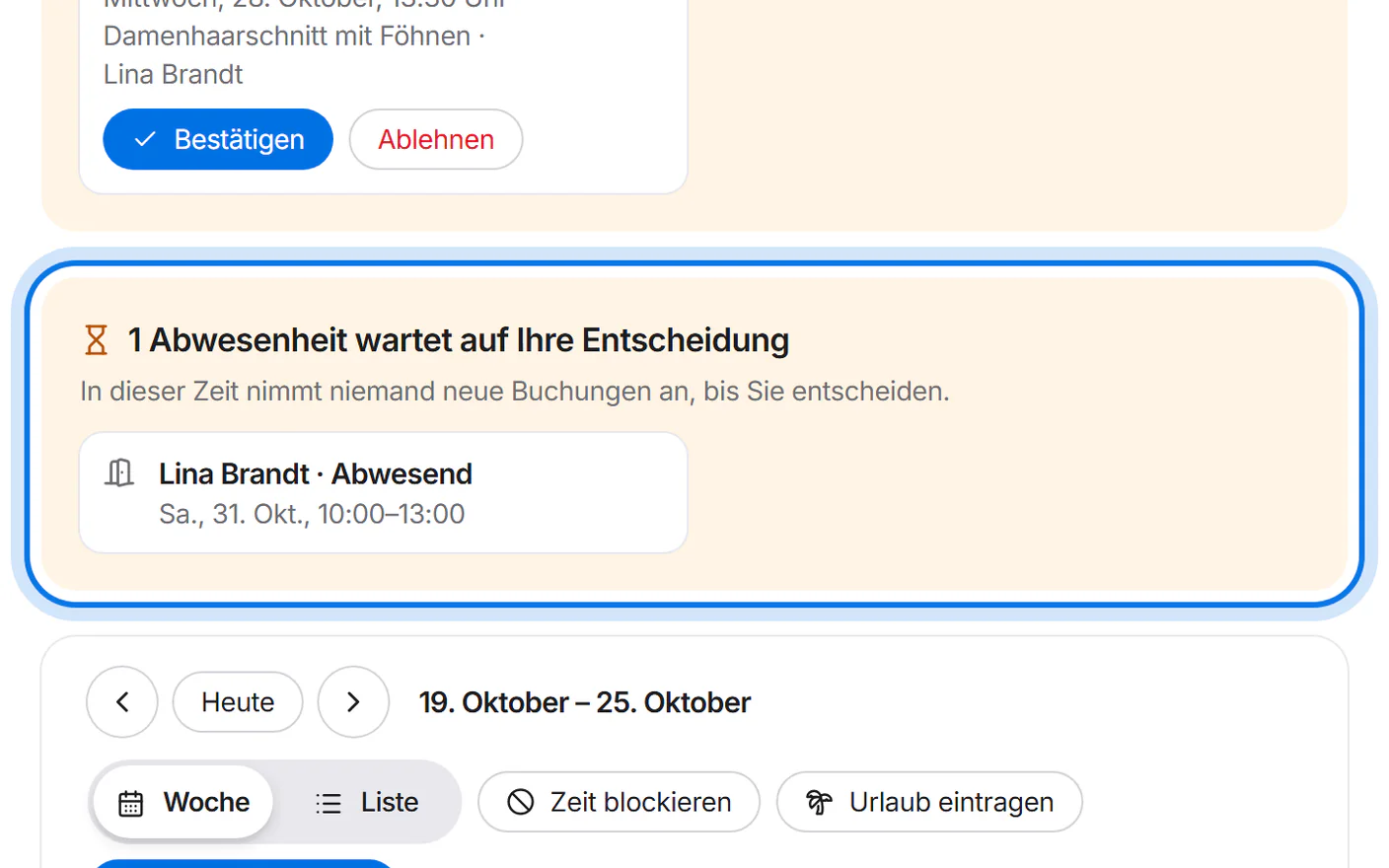
Tap the request to see the customer appointments affected. Tap “Genehmigen” (approve) or “Ablehnen” (decline). After approving, move or cancel those appointments – your customer is informed.