Connect and subscribe to calendars
Get your appointments on your phone and connect the calendars and booking tools your team already uses. Whatever is busy there, your assistant no longer offers – nothing is double-booked.
14 steps about 5 min
Subscribe to your calendar
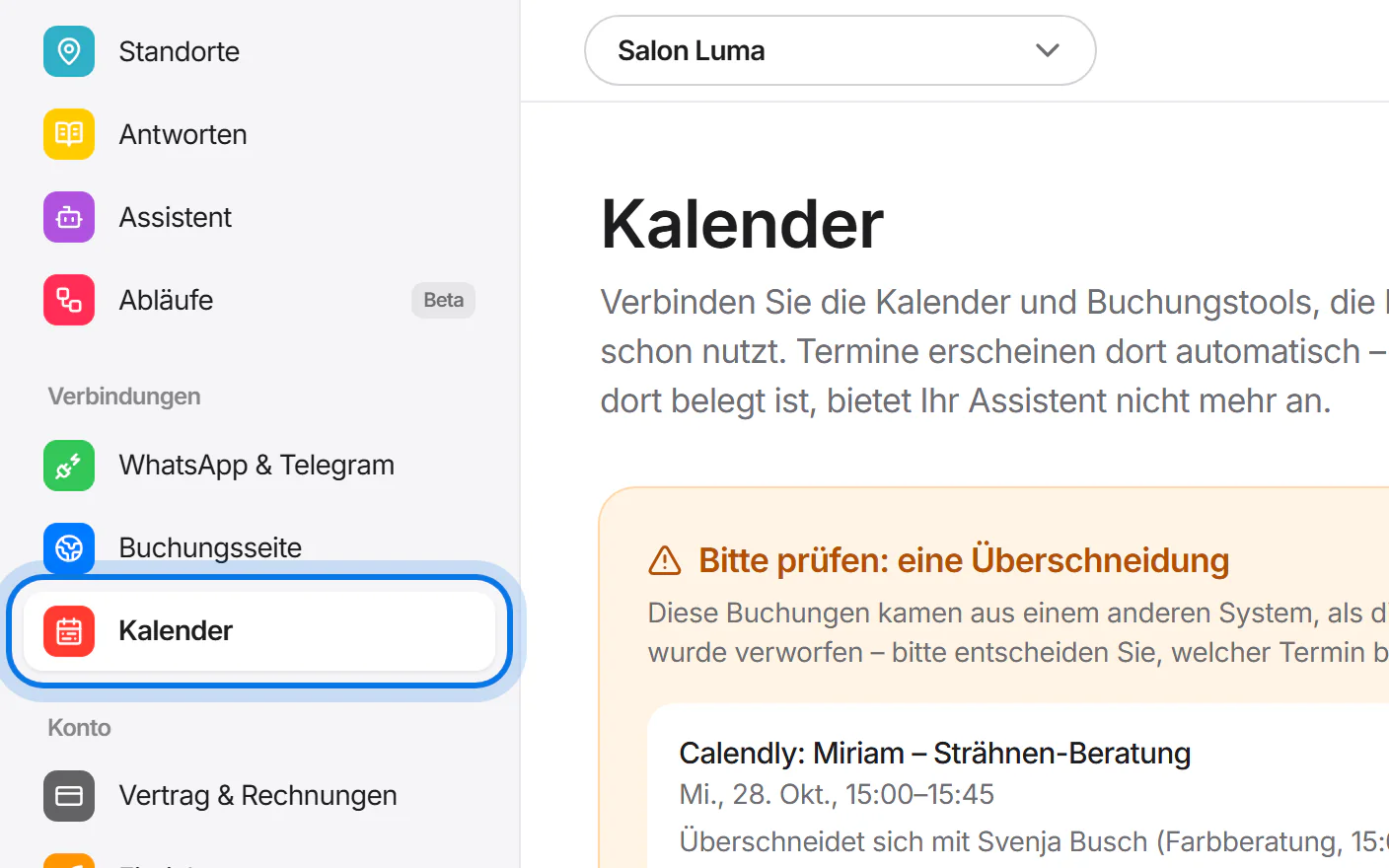
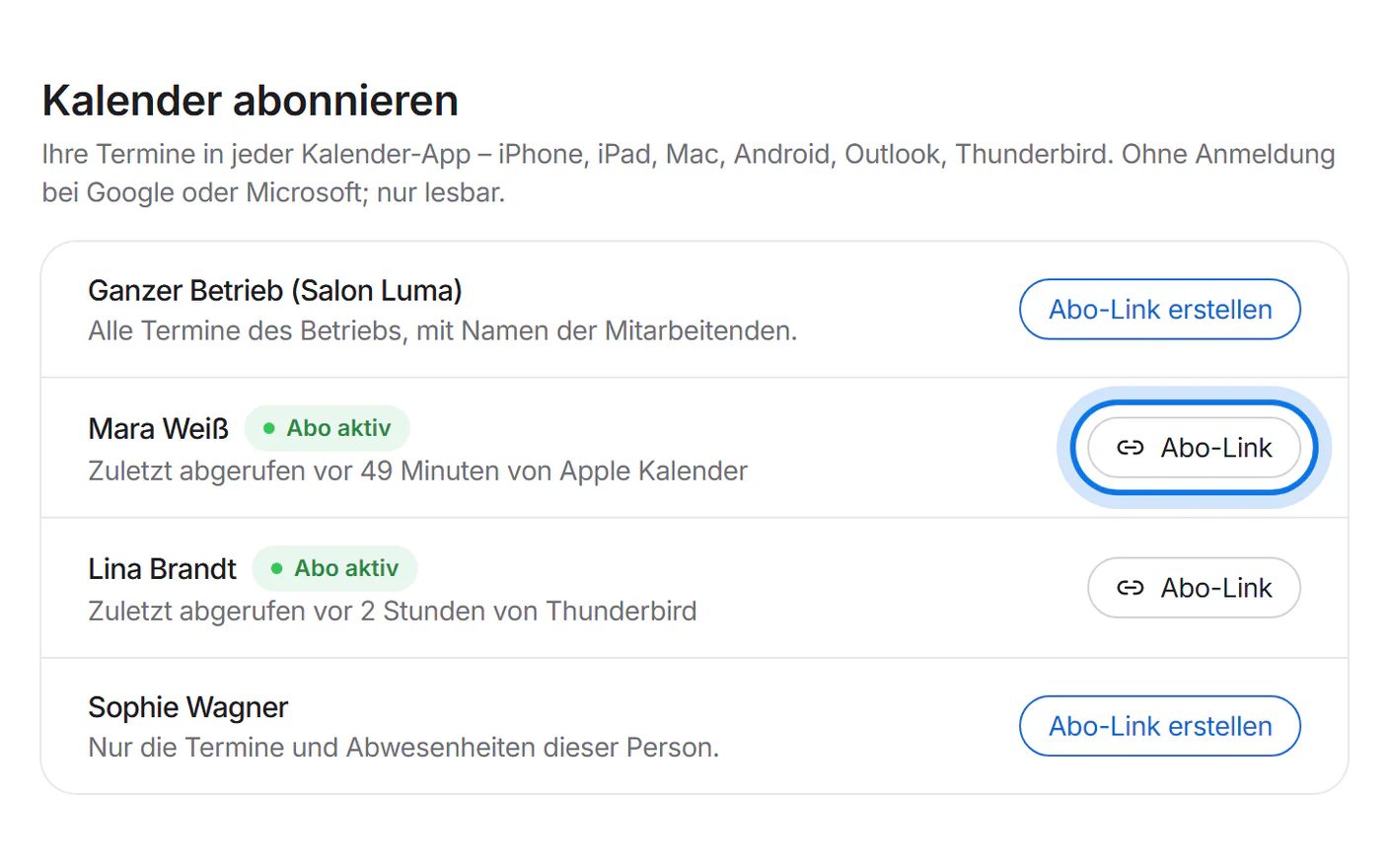
Open “Kalender” (calendar) in the menu on the left.
Under “Kalender abonnieren” (subscribe to calendar), each person has their own row, plus one for the whole business. Tap “Abo-Link erstellen” (create subscription link) – or “Abo-Link” if there already is one.
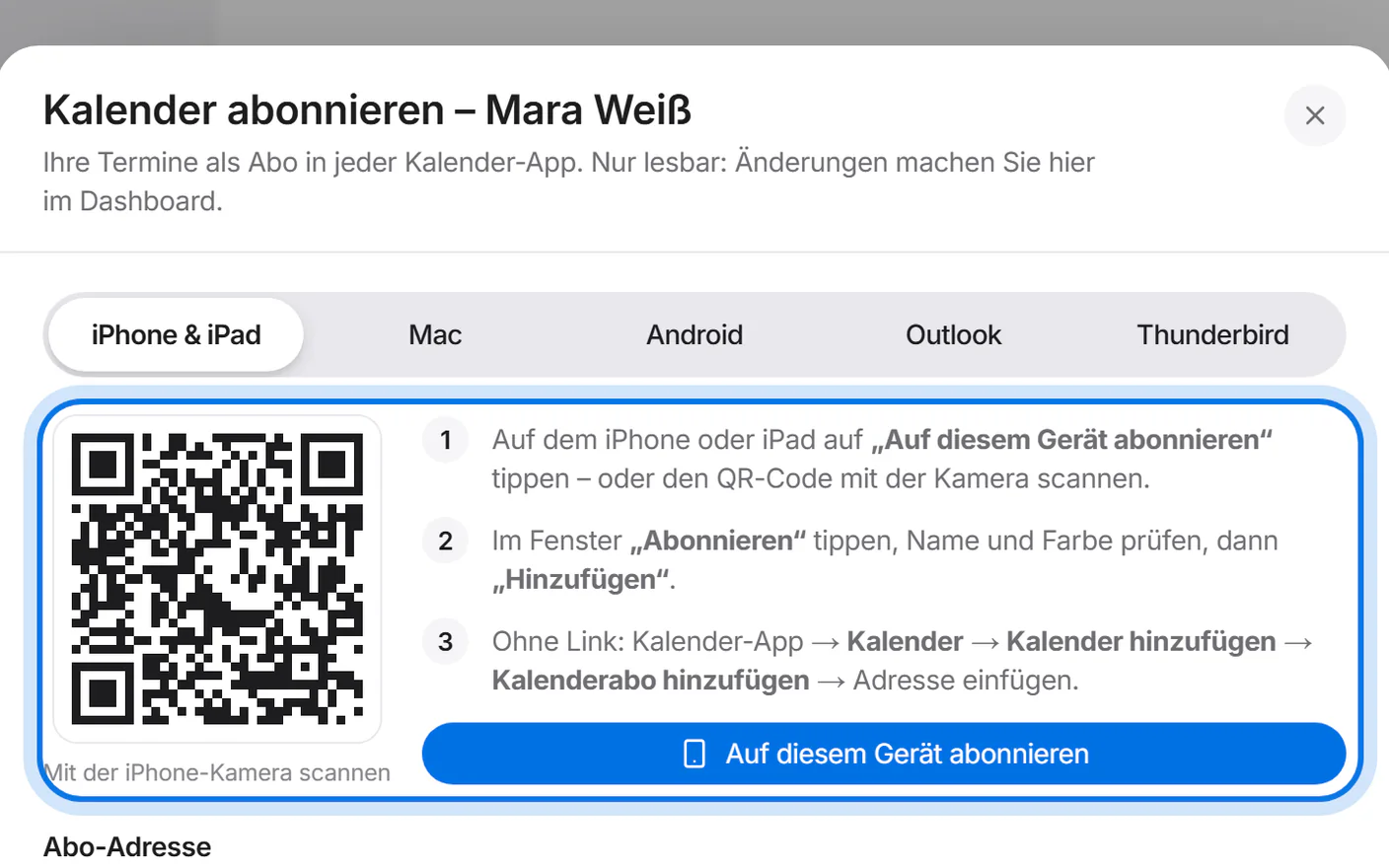
On an iPhone or iPad, tap “Auf diesem Gerät abonnieren” (subscribe on this device) – or scan the QR code with the camera. Then “Subscribe” and “Add”: your appointments appear in the Calendar app.
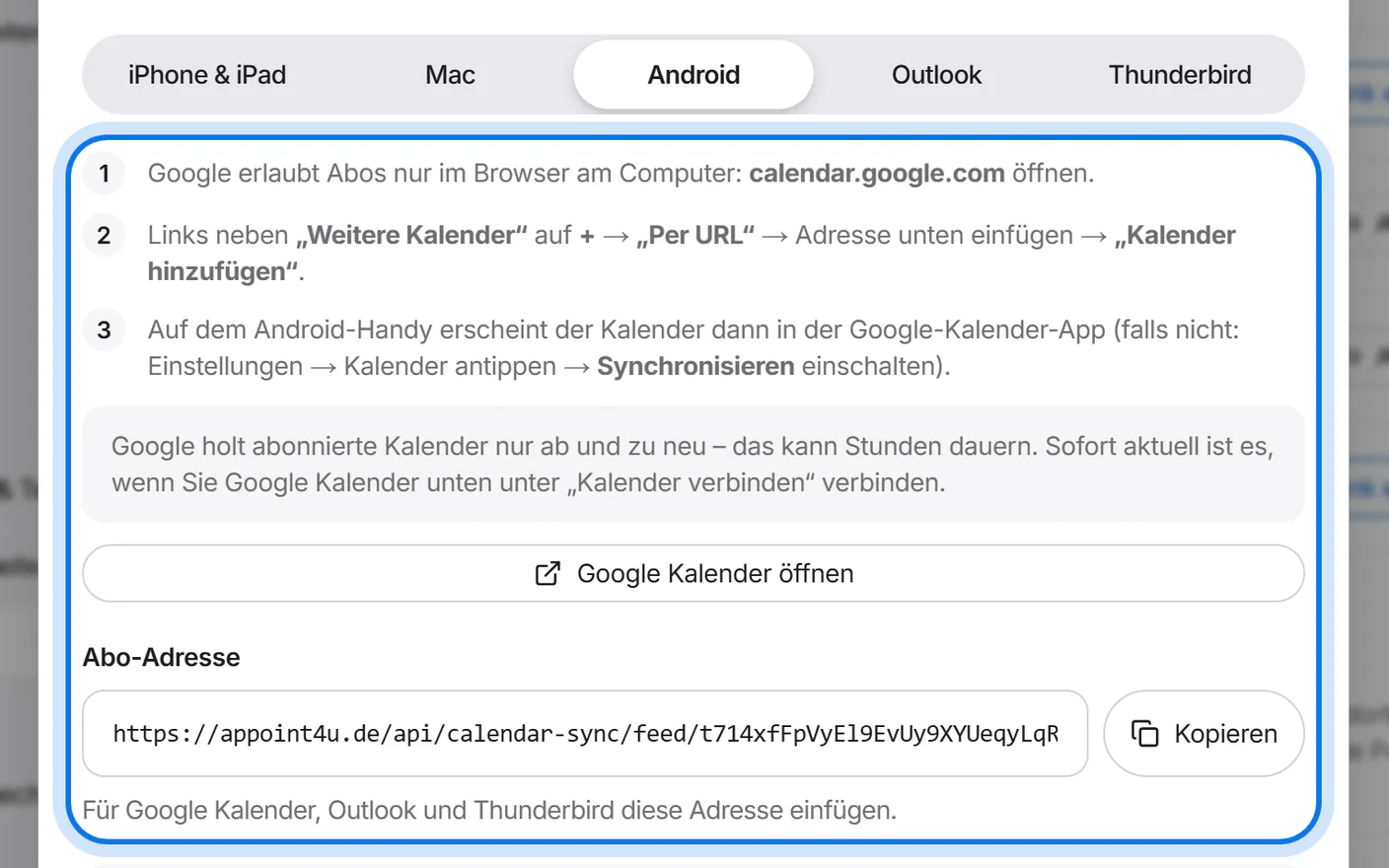
Android: Google only allows subscriptions in a browser on a computer. Copy the subscription address, open calendar.google.com and choose “+” → “From URL” next to “Other calendars”. The calendar then also appears in the Google Calendar app on the phone.
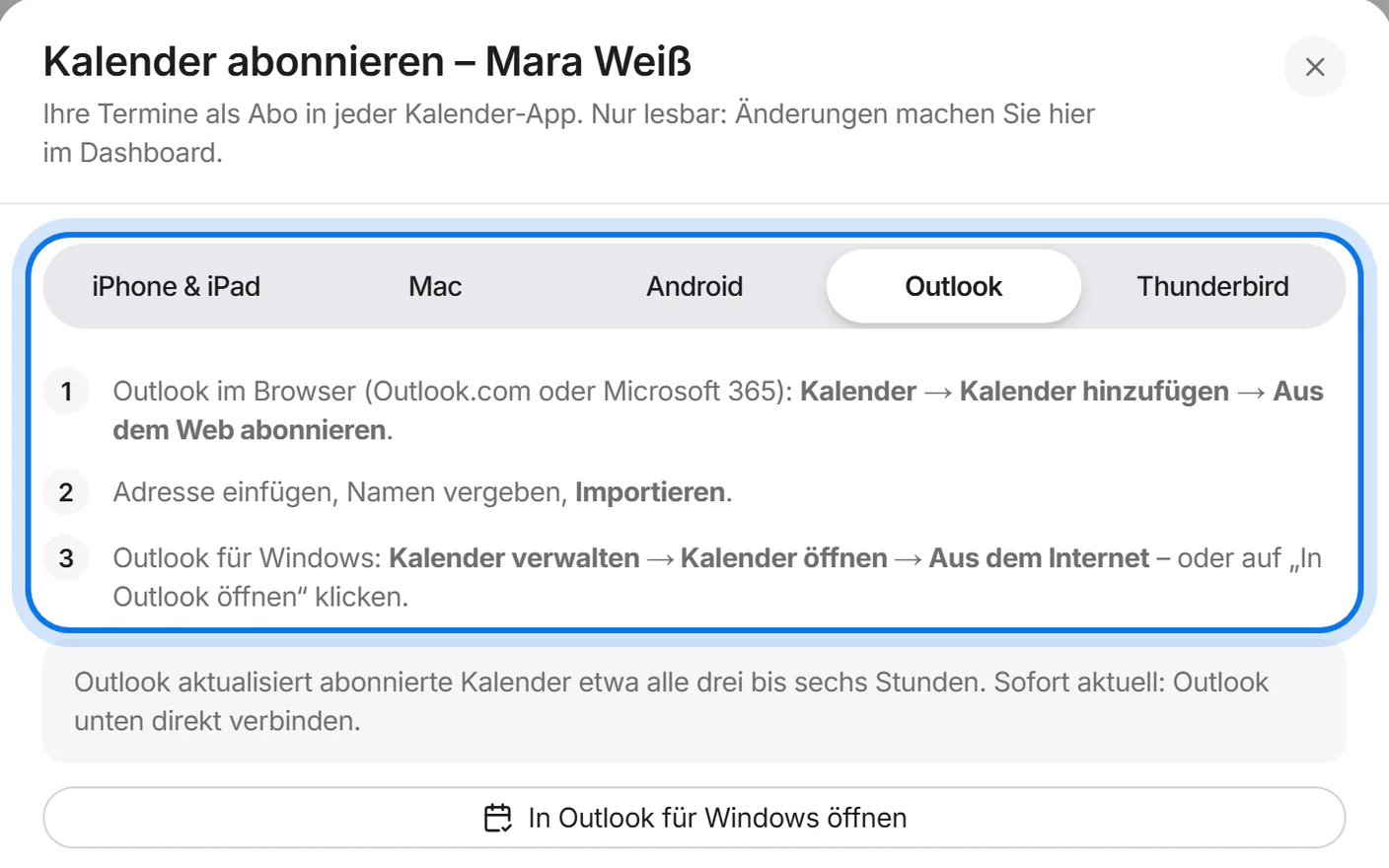
Outlook: in Outlook on the web, choose “Add calendar” → “Subscribe from web”, paste the subscription address and click “Import”. The steps for Outlook on Windows are in the “Outlook” tab.


Connect Google, Outlook or iCloud
Both ways and always up to date: under “Kalender verbinden” (connect calendar), tap “Verbinden” (connect) on “Google Kalender” or “Outlook / Microsoft 365”.
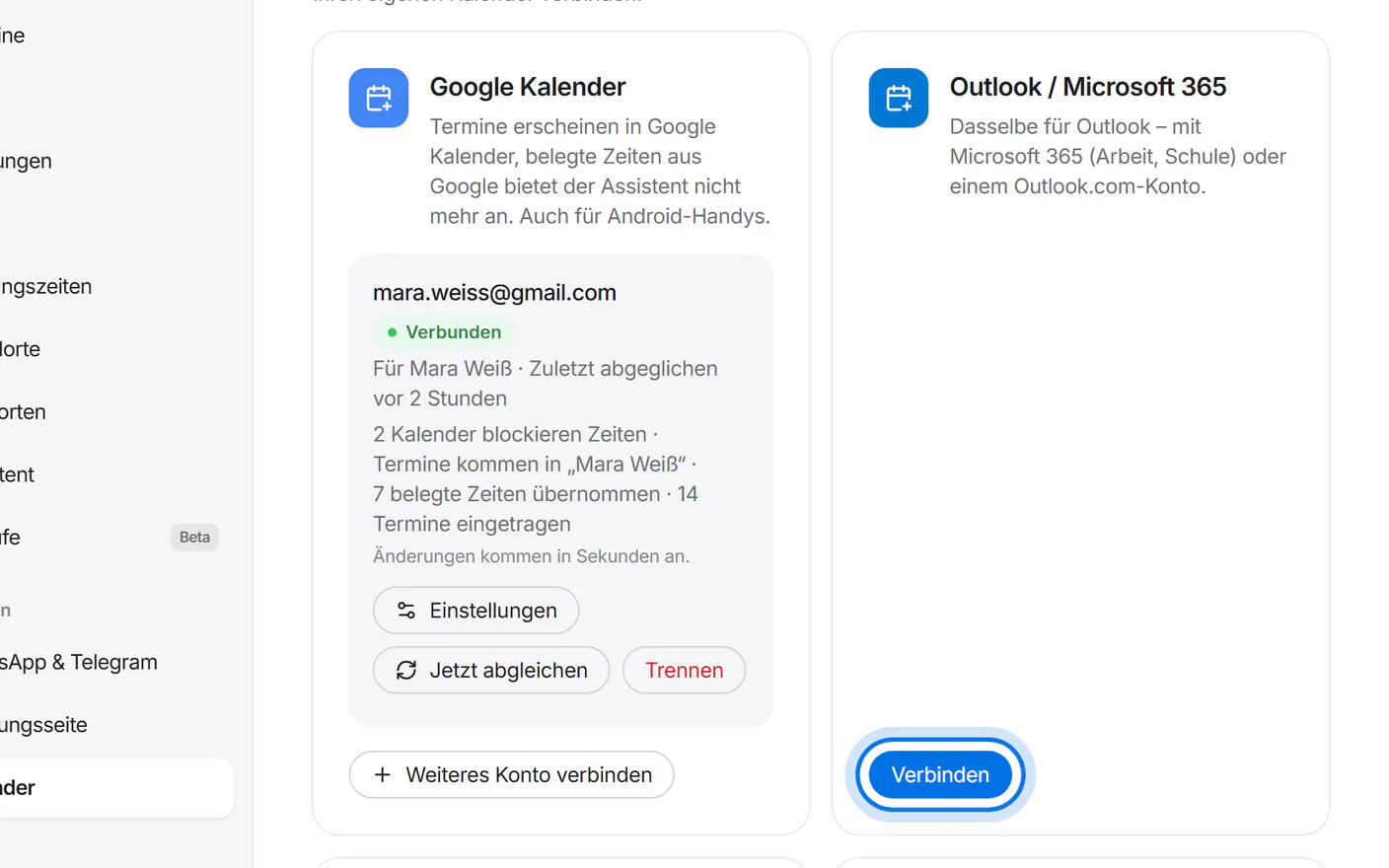
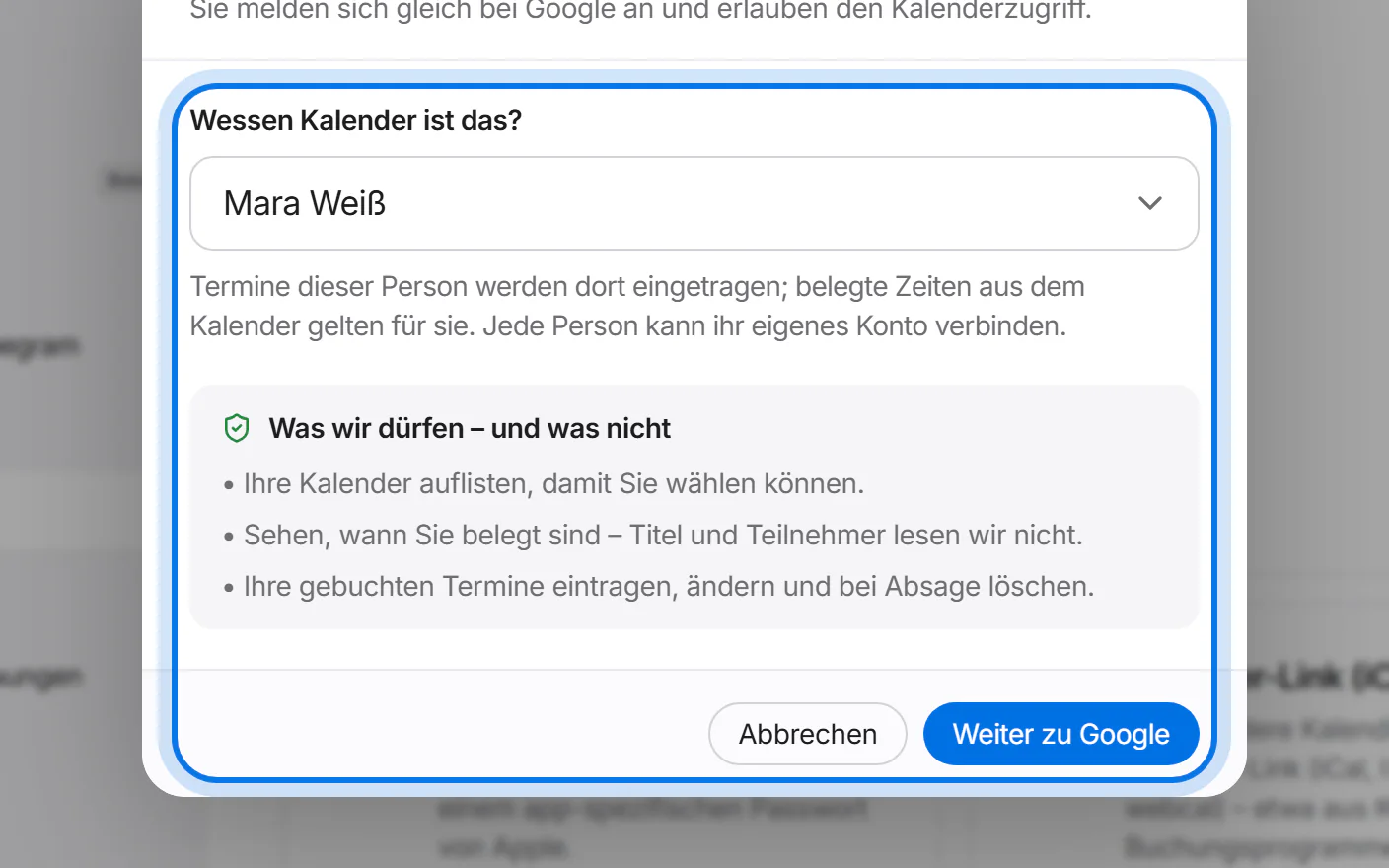
Under “Wessen Kalender ist das?” (whose calendar is this?), choose the person and tap “Weiter zu Google” or “Weiter zu Microsoft” (continue to …). Sign in there and allow calendar access – you then come back on your own.
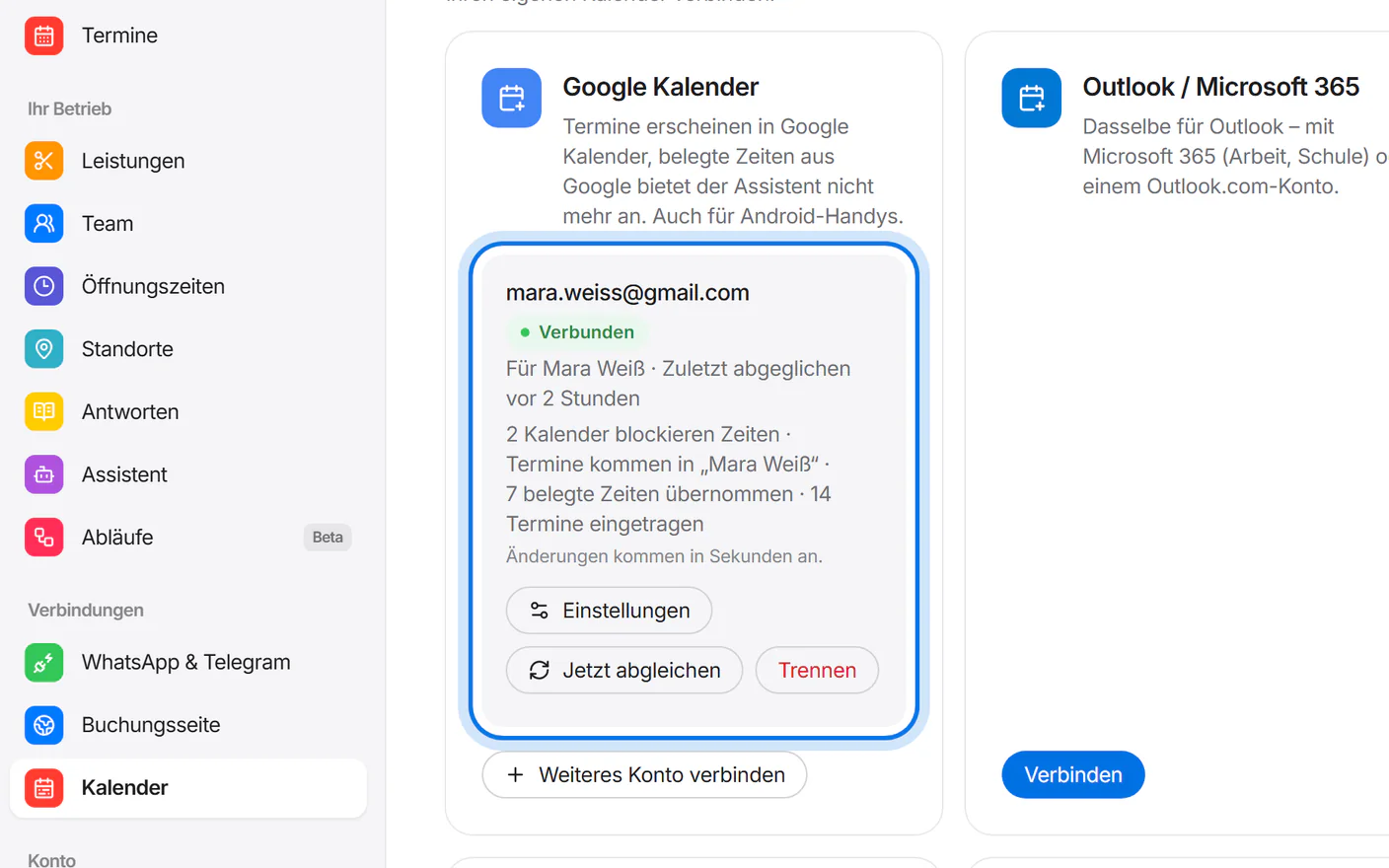
Done: the connection shows which calendars block times and which calendar new appointments go into. You change both under “Einstellungen” (settings).
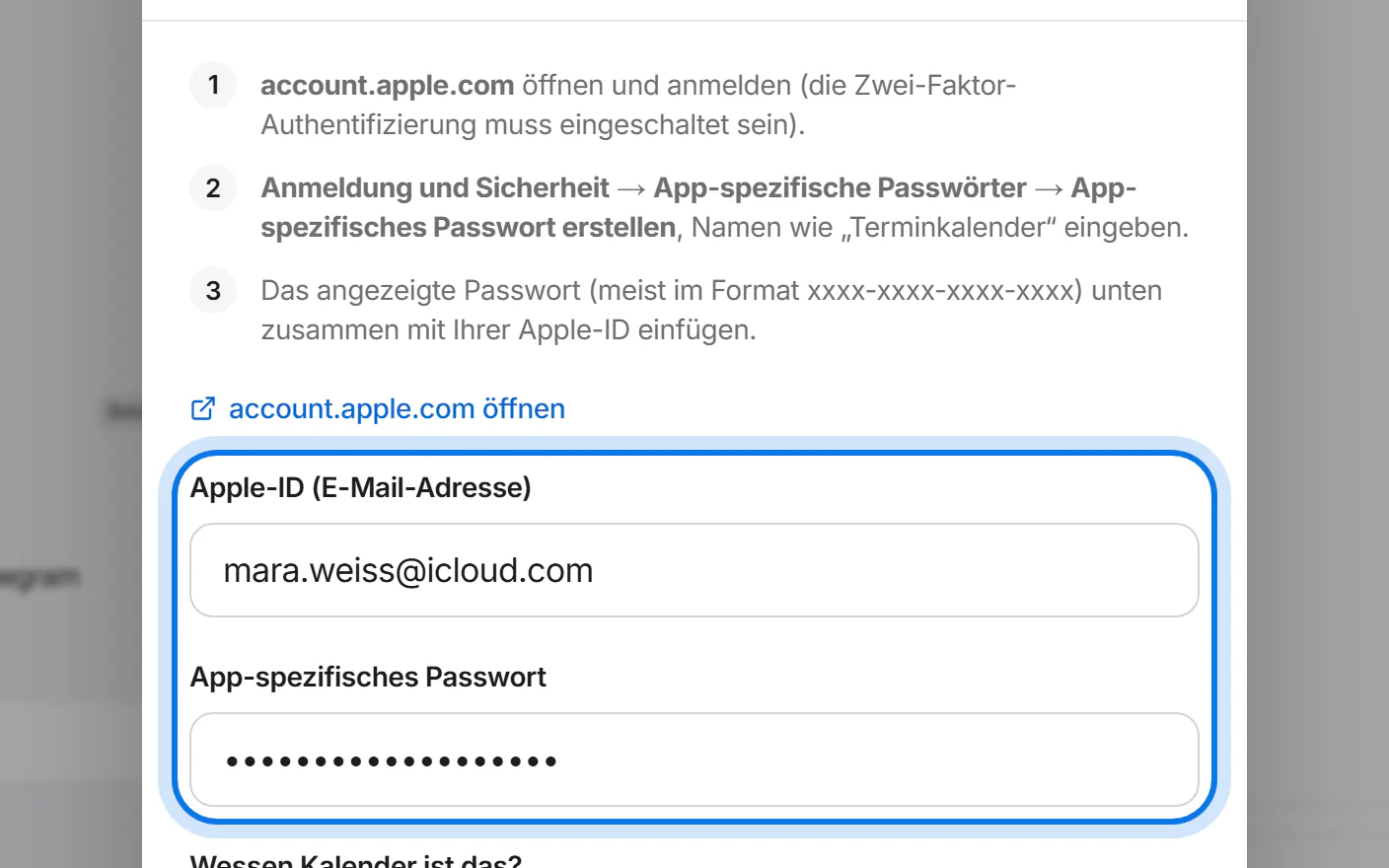
iCloud: on account.apple.com, under “Sign-In and Security” → “App-Specific Passwords”, create a password – two-factor authentication must be switched on for this. Tap “Verbinden” on “Apple iCloud” and paste your Apple ID and that password.


Other calendars via link
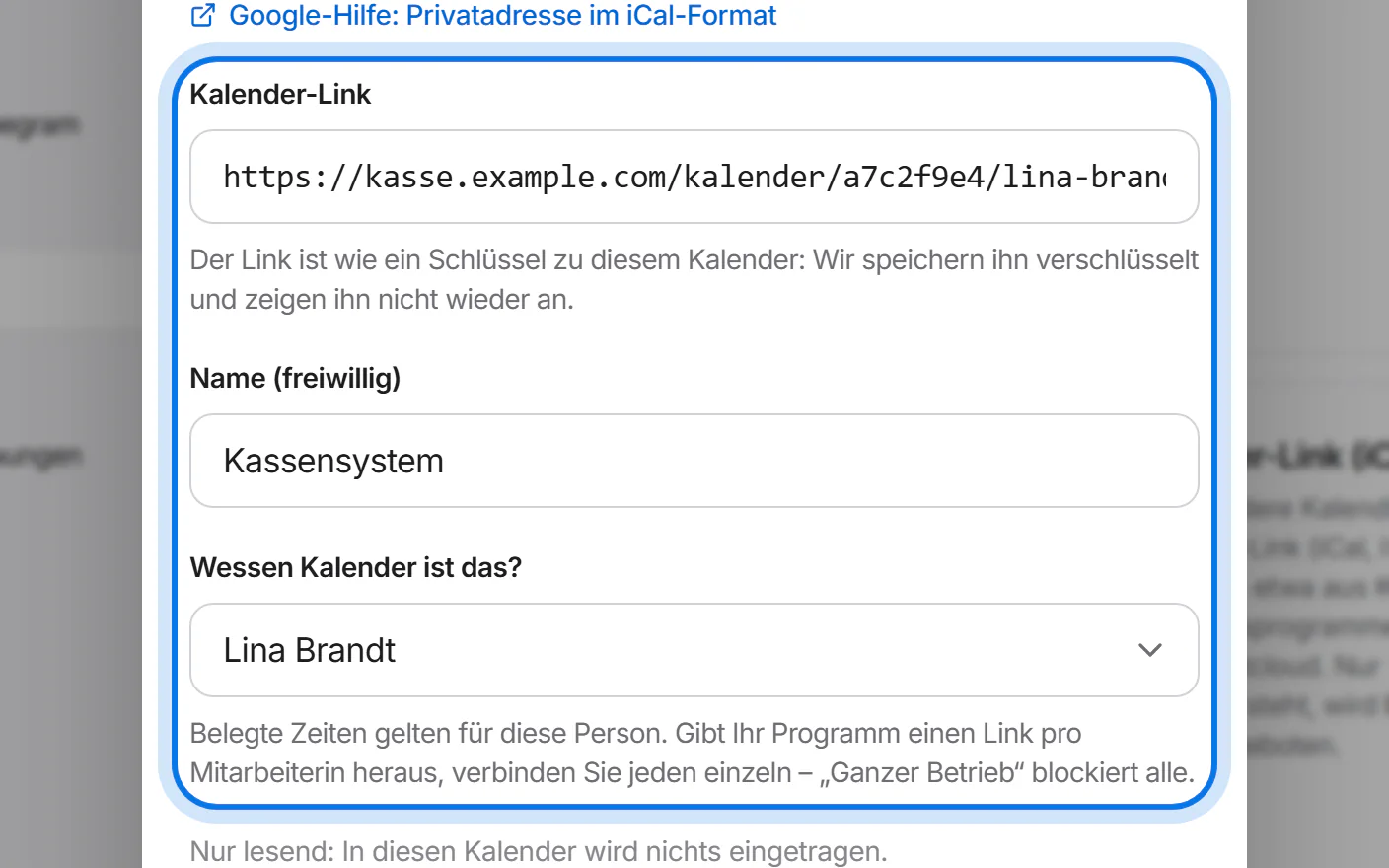
Does your till or booking software give out its calendar as a link? Look there for “calendar subscription”, “iCal export” or “ICS link”. Tap “Verbinden” on “Kalender-Link (iCal)”, paste the link and choose the person. The assistant no longer offers the busy times from it; we don't enter anything in that calendar.

Calendly, Cal.com and Acuity
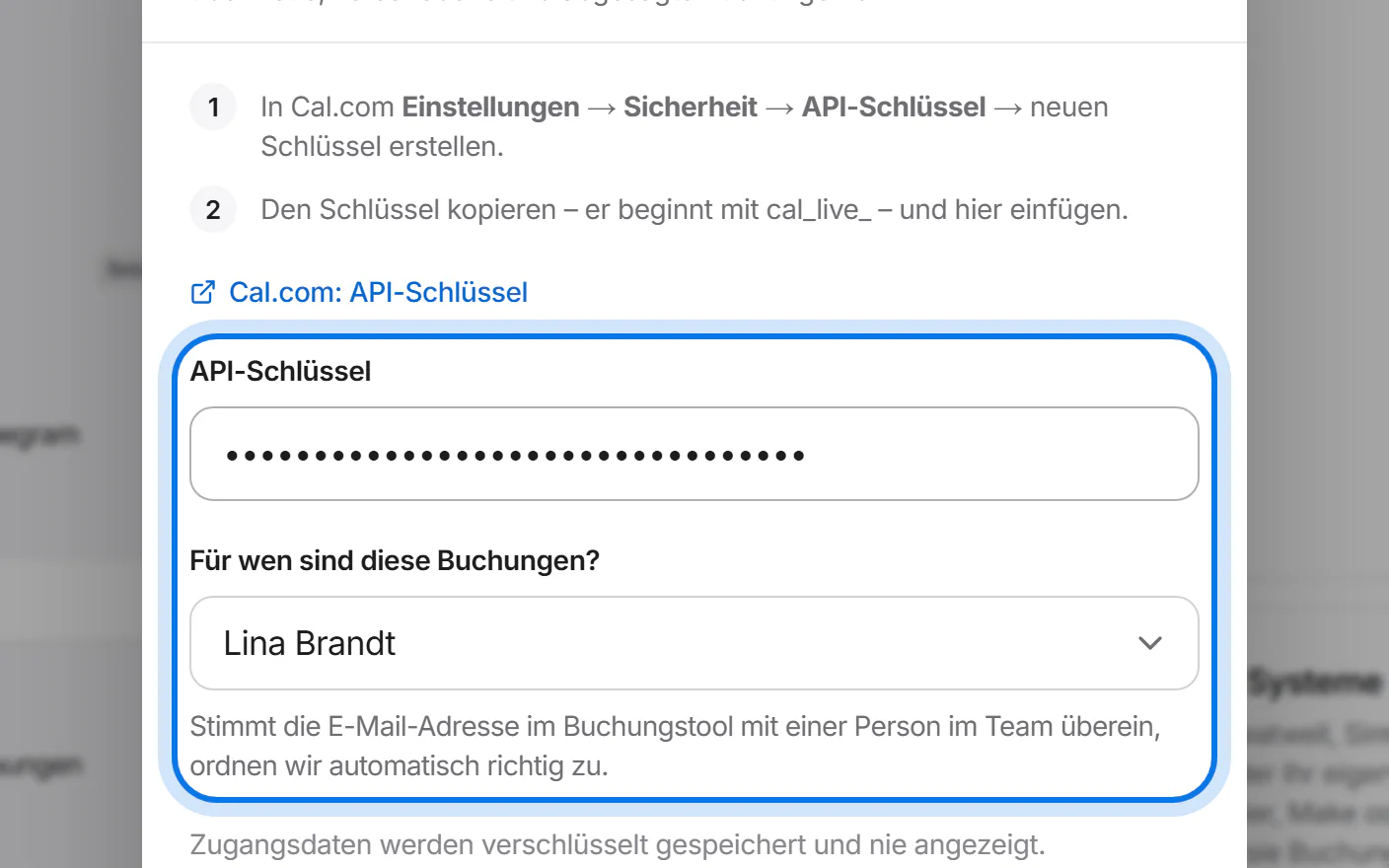
Already using a booking tool? Under “Buchungstools” (booking tools), tap “Verbinden” on the provider, paste your access token or API key and choose whose bookings they are. The window tells you where to find it.
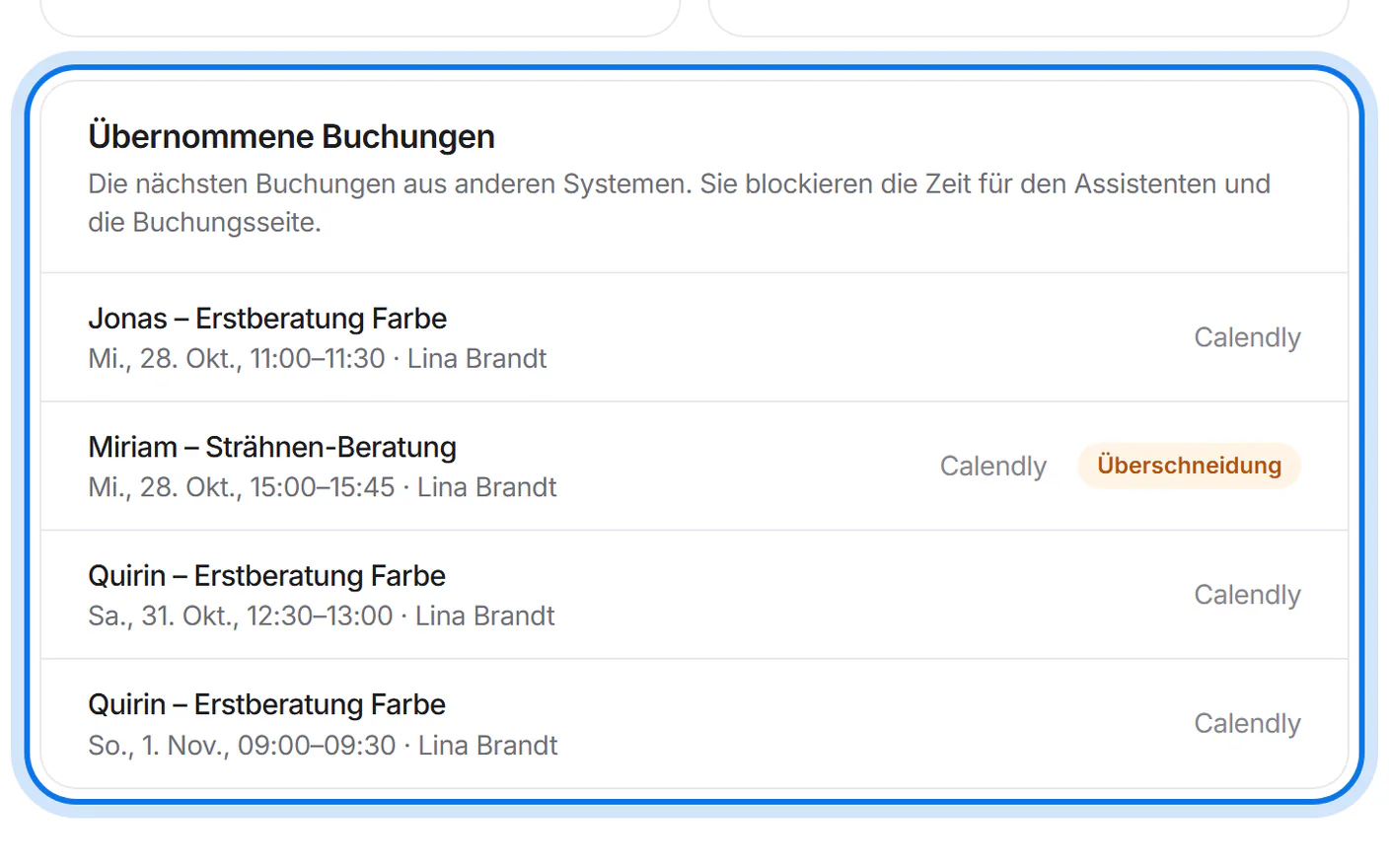
New, moved and cancelled bookings arrive right away and block the time for the assistant and the booking page. They are listed under “Übernommene Buchungen” (imported bookings) – and under “Termine” (appointments) too.
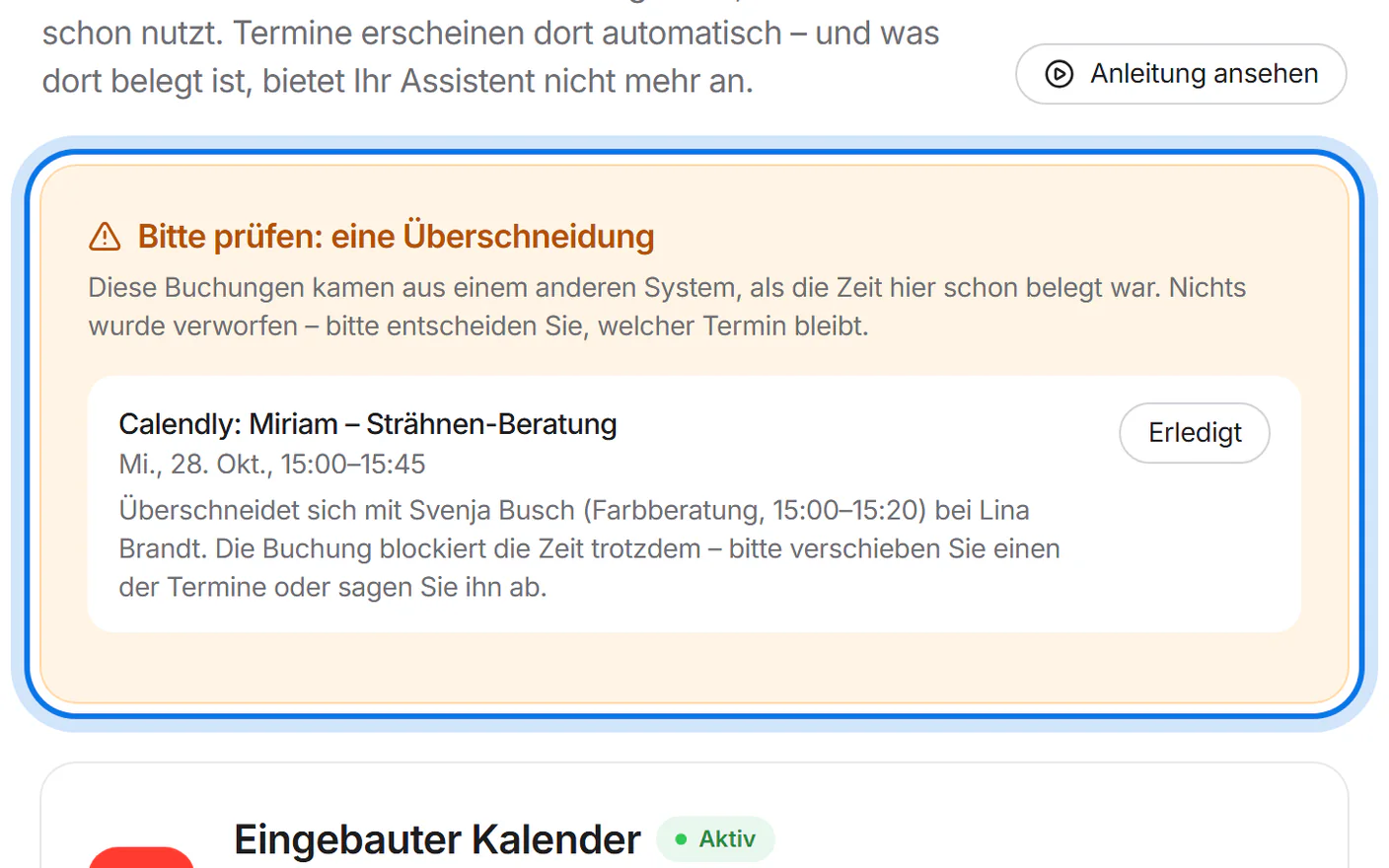
If a booking comes in for a time that is already taken, we still take it over and show it at the top under “Bitte prüfen” (please check) – nothing is dropped. Move or cancel one of the two appointments, then tap “Erledigt” (done).


For developers
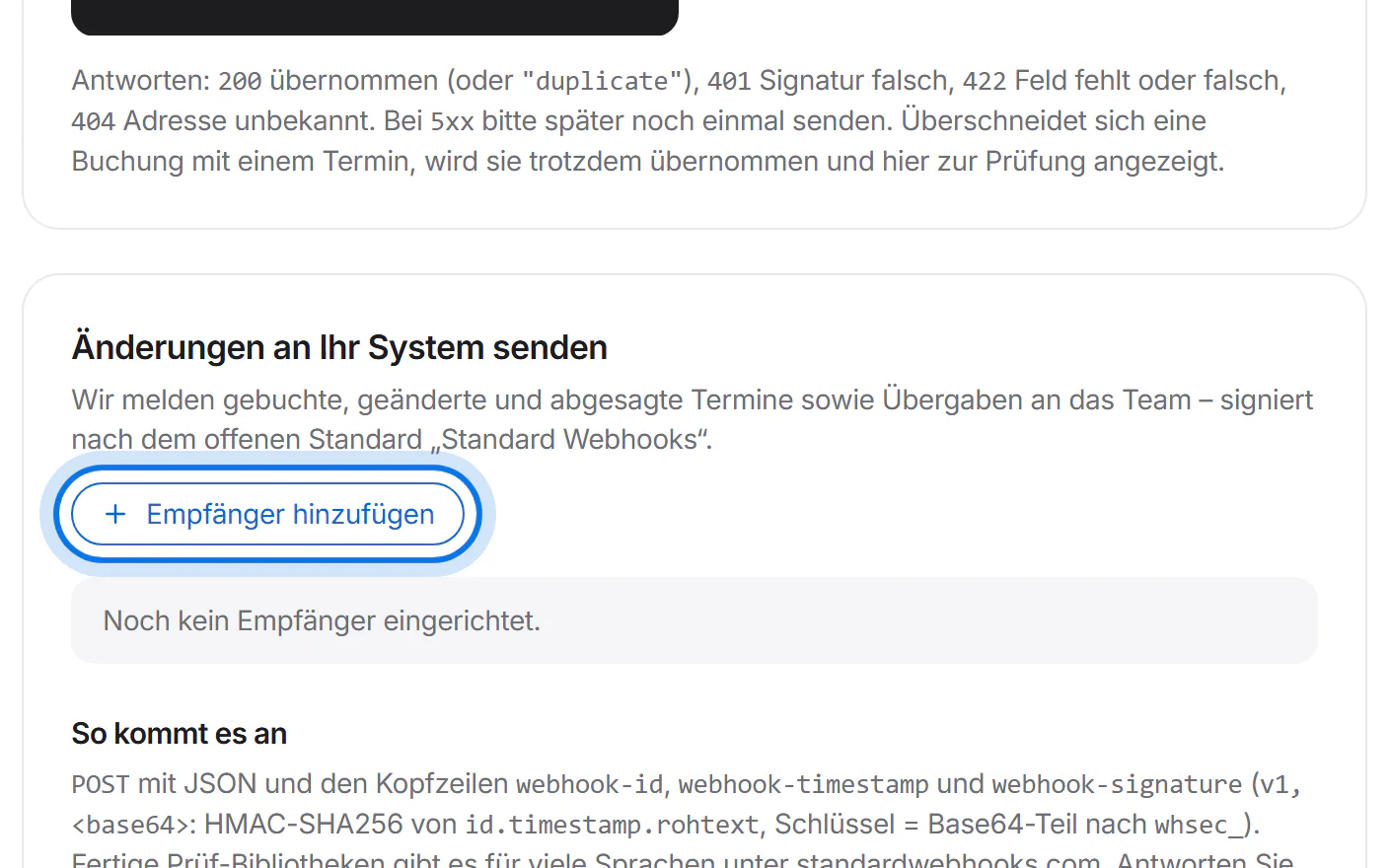
Own software or another booking system? Under “Für Entwickler” (for developers), add an address with “Empfänger hinzufügen” (add recipient): we send booked, changed and cancelled appointments there – signed. Bookings come in through “Andere Systeme (Webhook)” (other systems), for example from Shore or Treatwell via Zapier, Make or n8n.