View, add and cancel appointments
Under “Termine” (appointments) you see every booking from WhatsApp, Telegram and your booking page. Here you confirm bookings, add appointments yourself, move or cancel them and enter absences.
14 steps about 5 min
View appointments
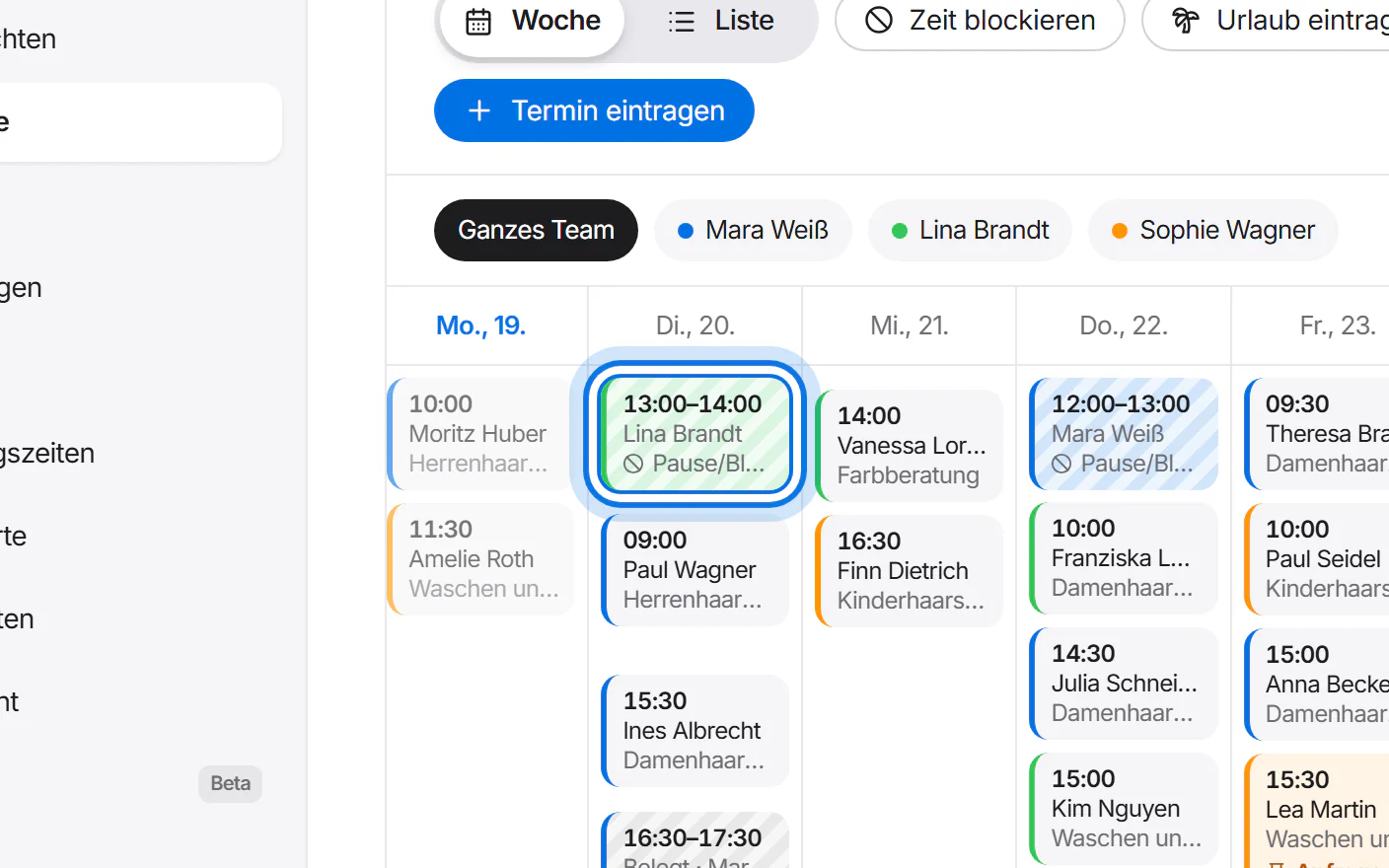
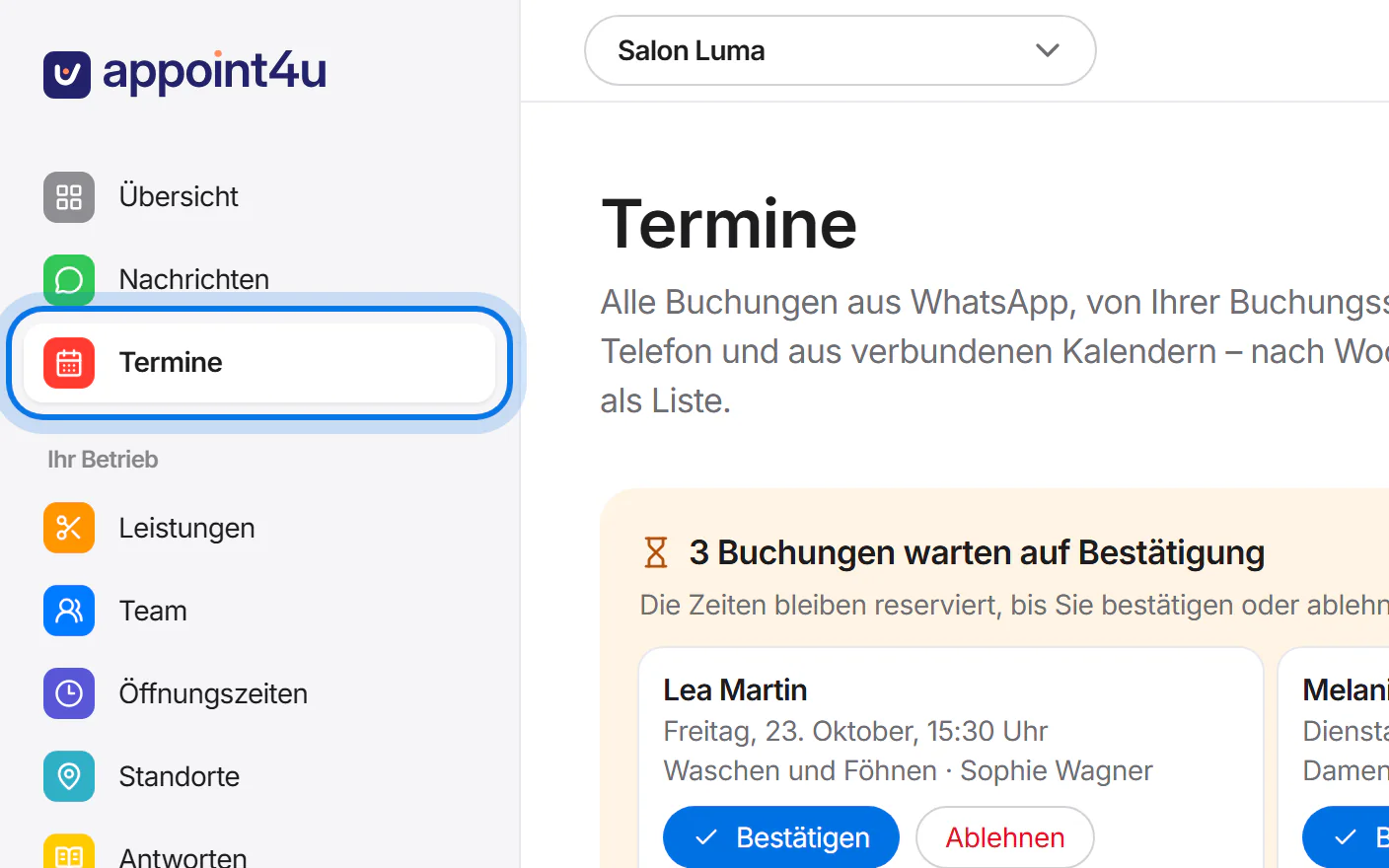
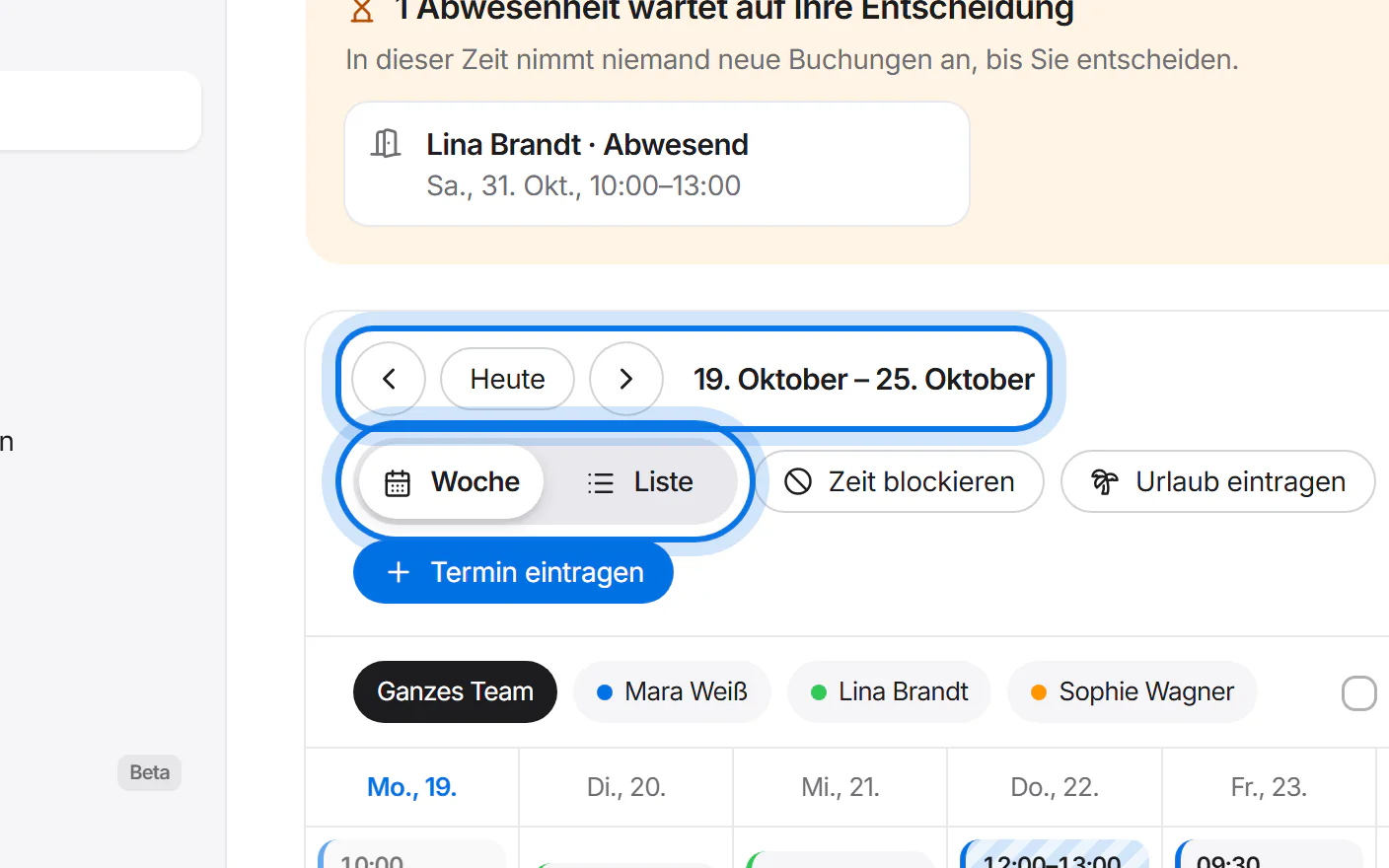
Open “Termine” (appointments) in the menu on the left. You see the current week.
Use the arrows to move week by week. “Liste” (list) shows all appointments one below the other.
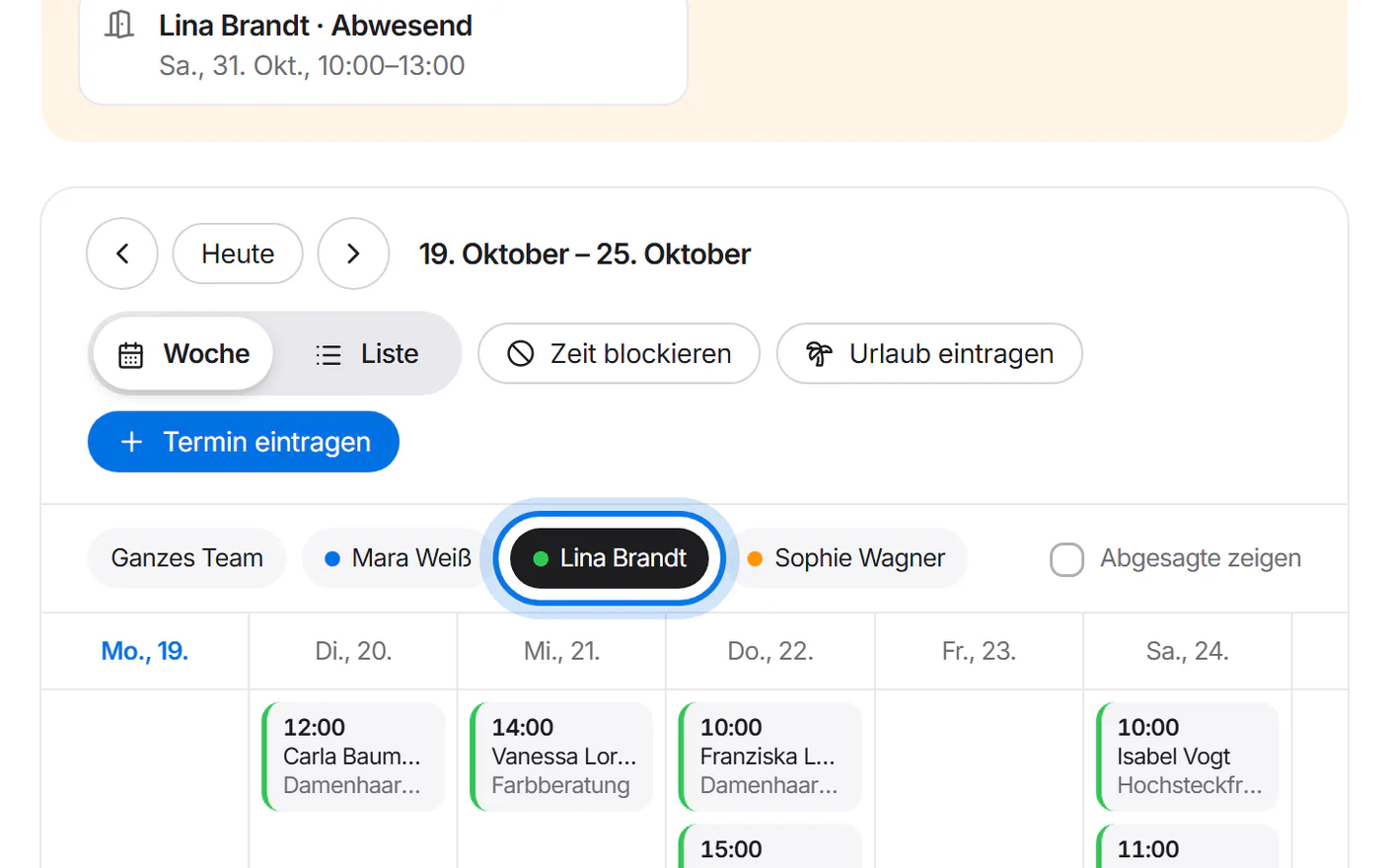
Tap a name to see only that person's appointments.
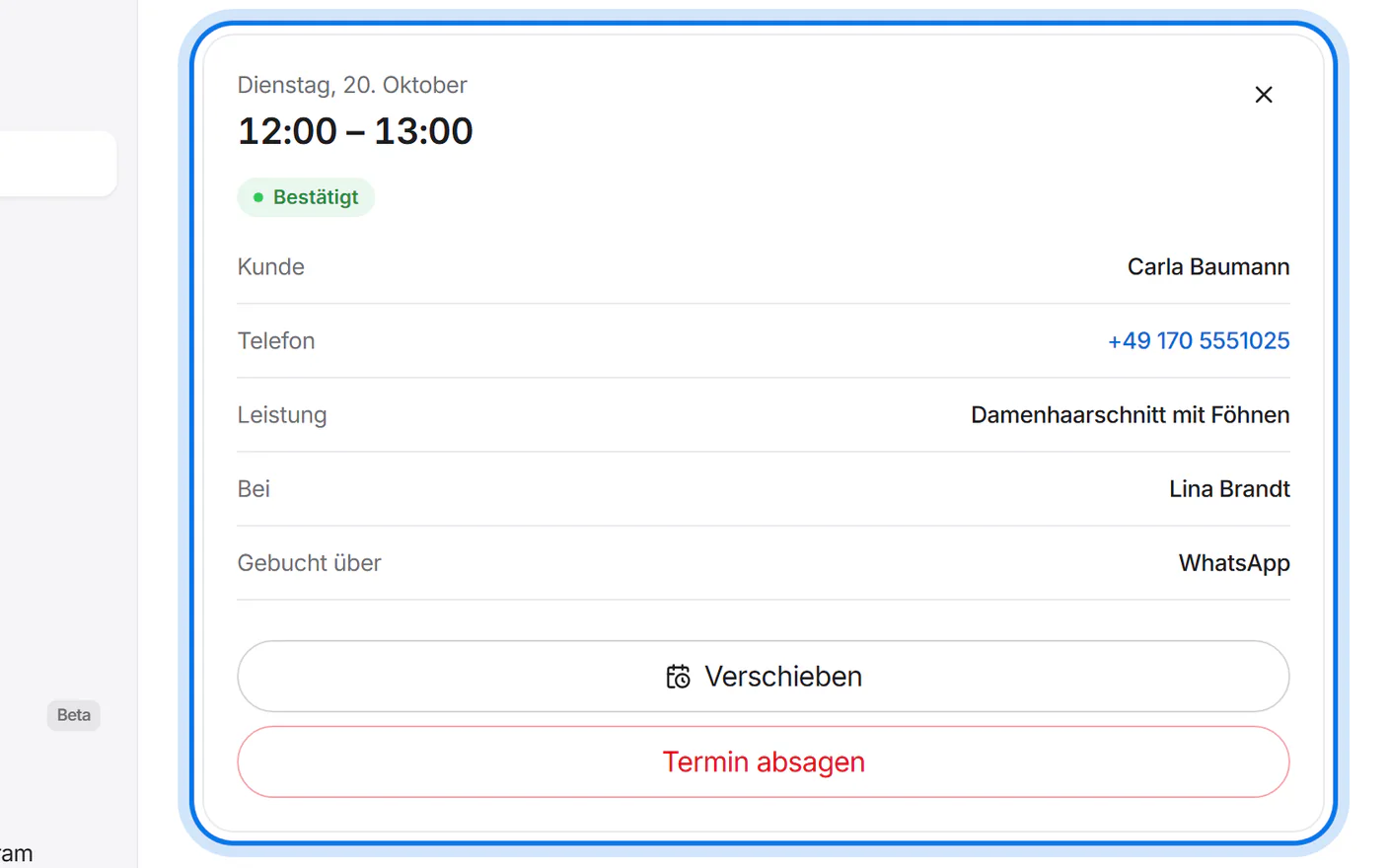
Tap an appointment to see the customer, phone number, service and who takes it.


Confirm bookings
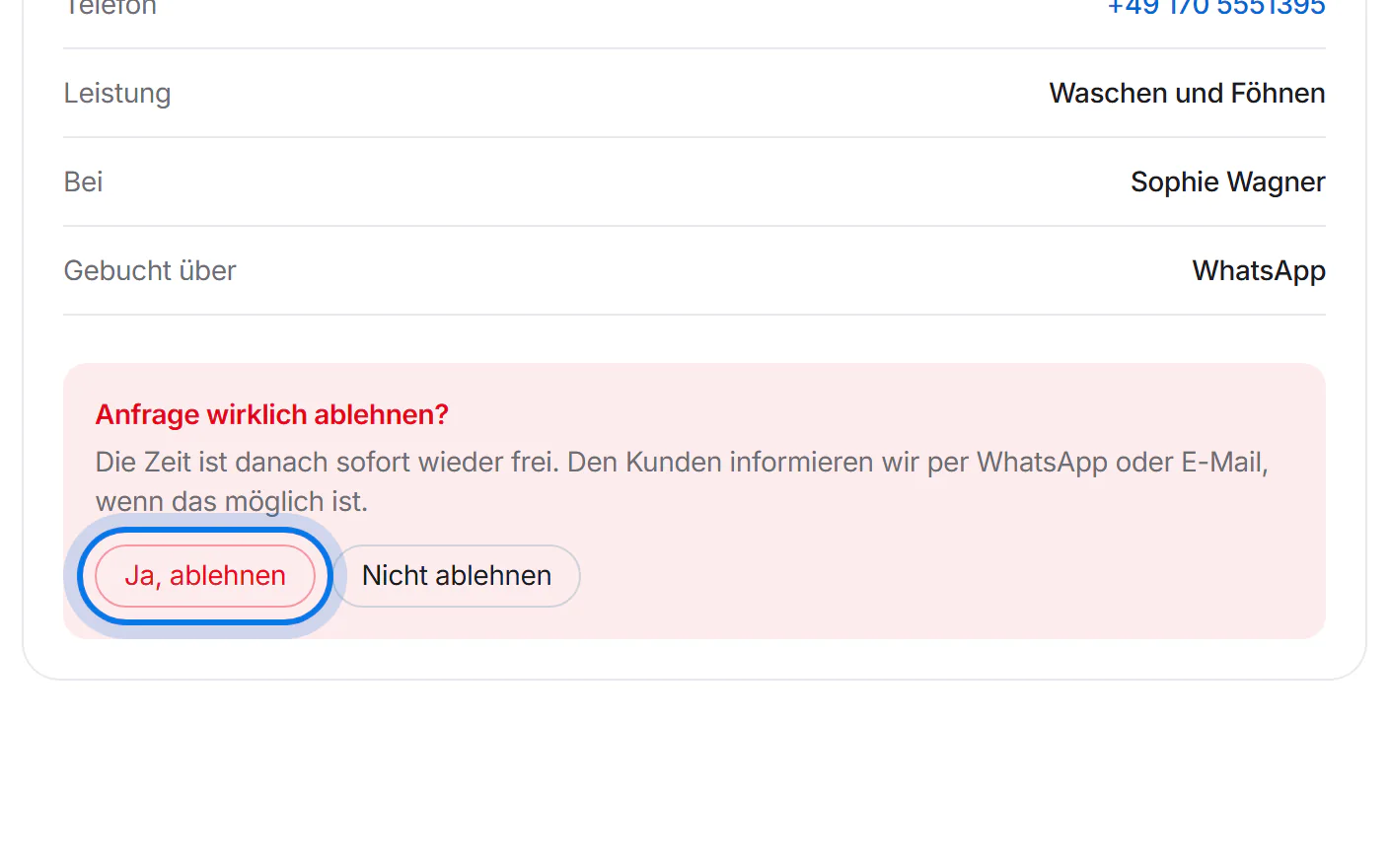
With “Buchungen erst bestätigen” (confirm bookings first) switched on, new bookings wait at the top of the calendar. The time stays reserved until you tap “Bestätigen” (confirm) or “Ablehnen” (decline). Your customer hears about it by WhatsApp or email.
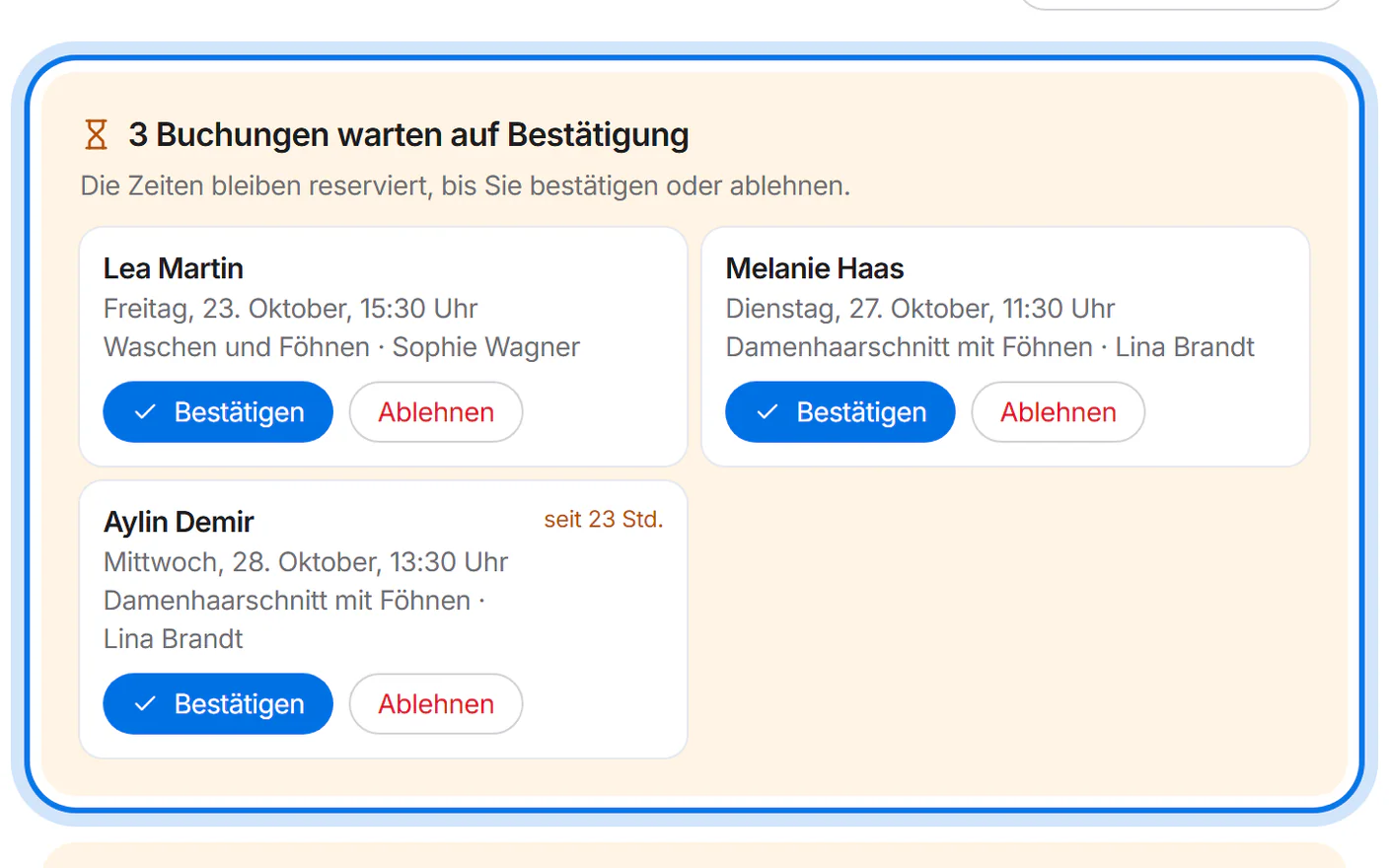
“Ablehnen” asks once more. With “Ja, ablehnen” (yes, decline) the time is free again right away.


Add an appointment
For phone calls and walk-in customers, tap “Termin eintragen” (add appointment) at the top.
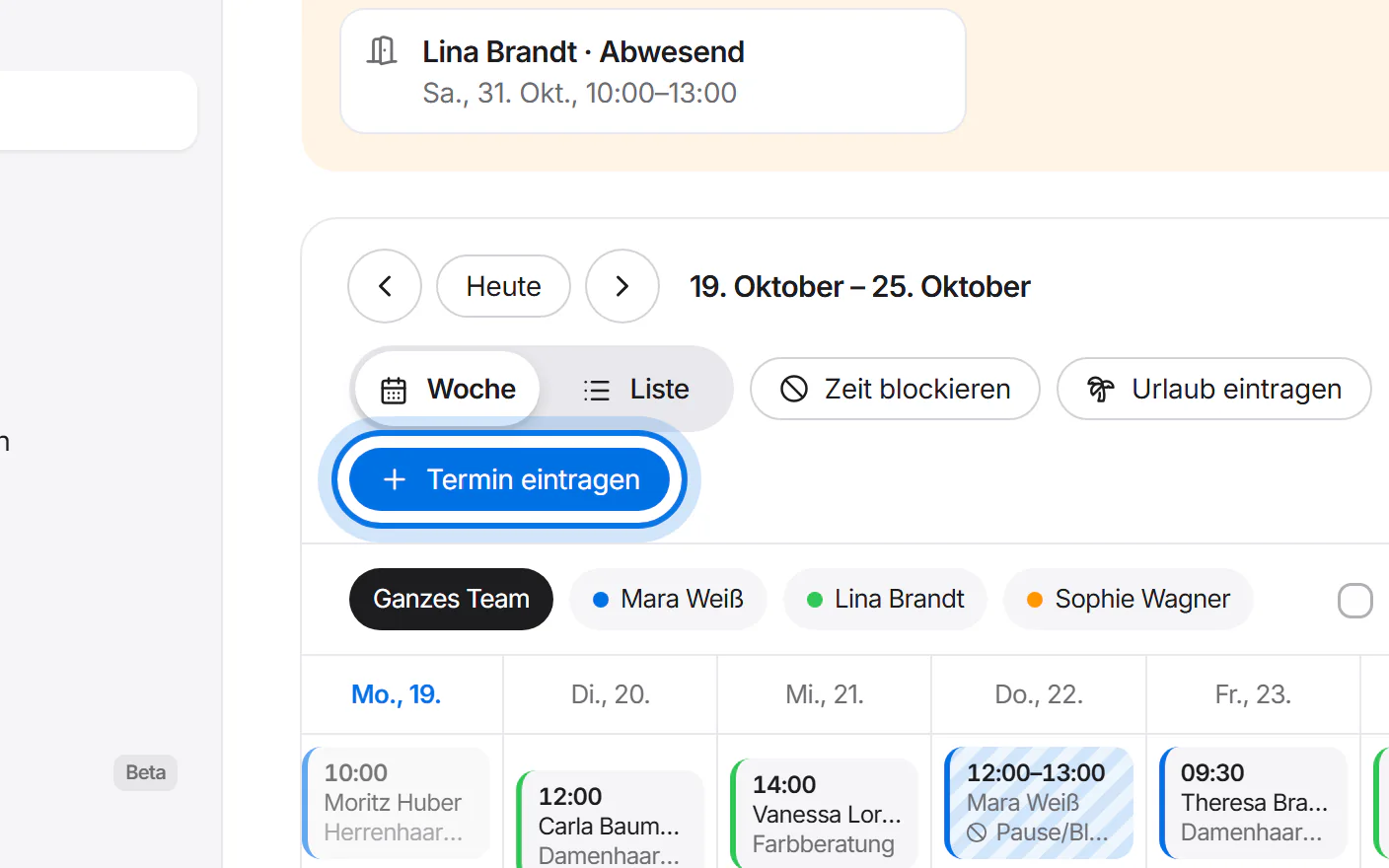
Choose the service, person and day, tap a free time and enter the name. Phone, email and note are optional.
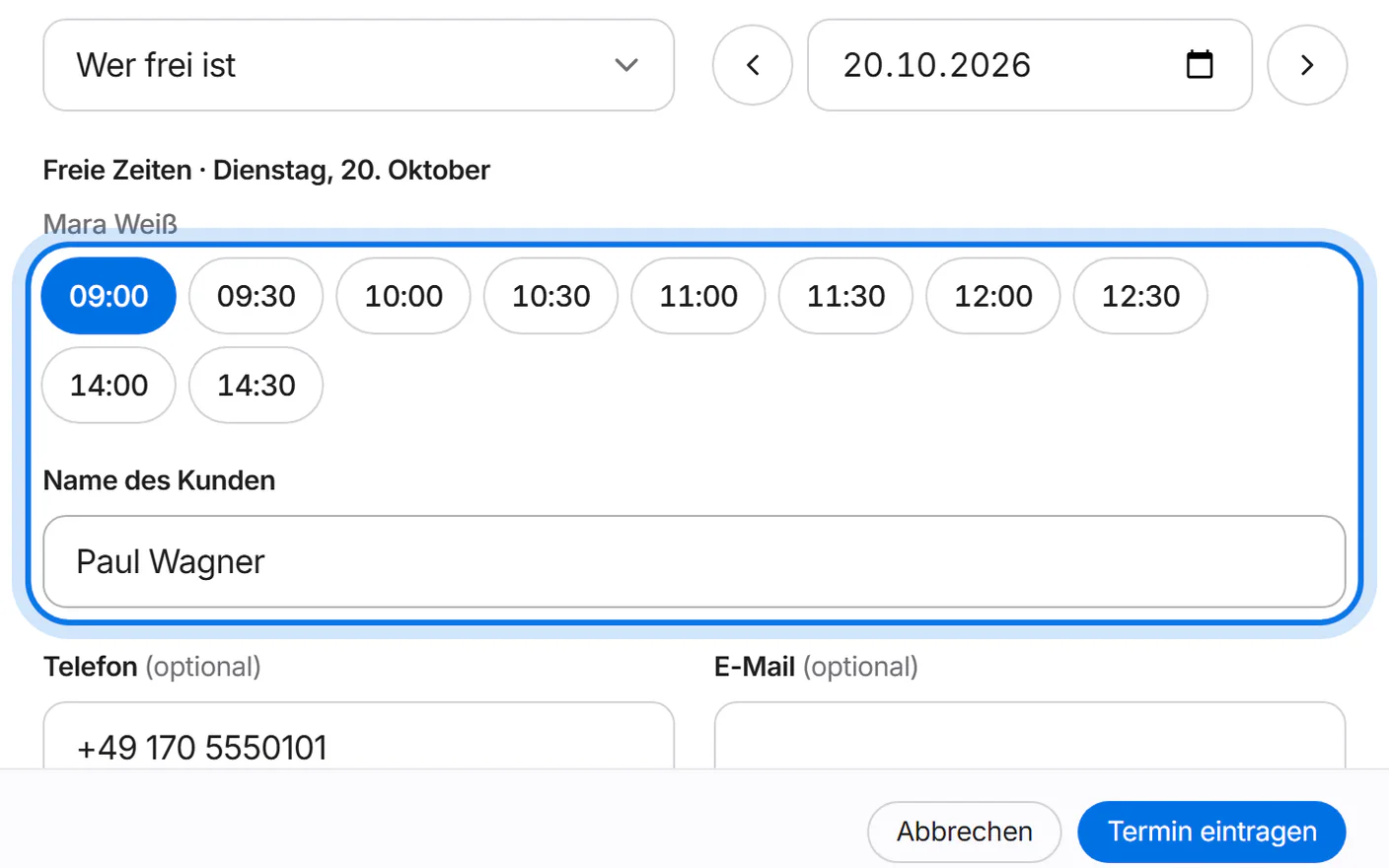
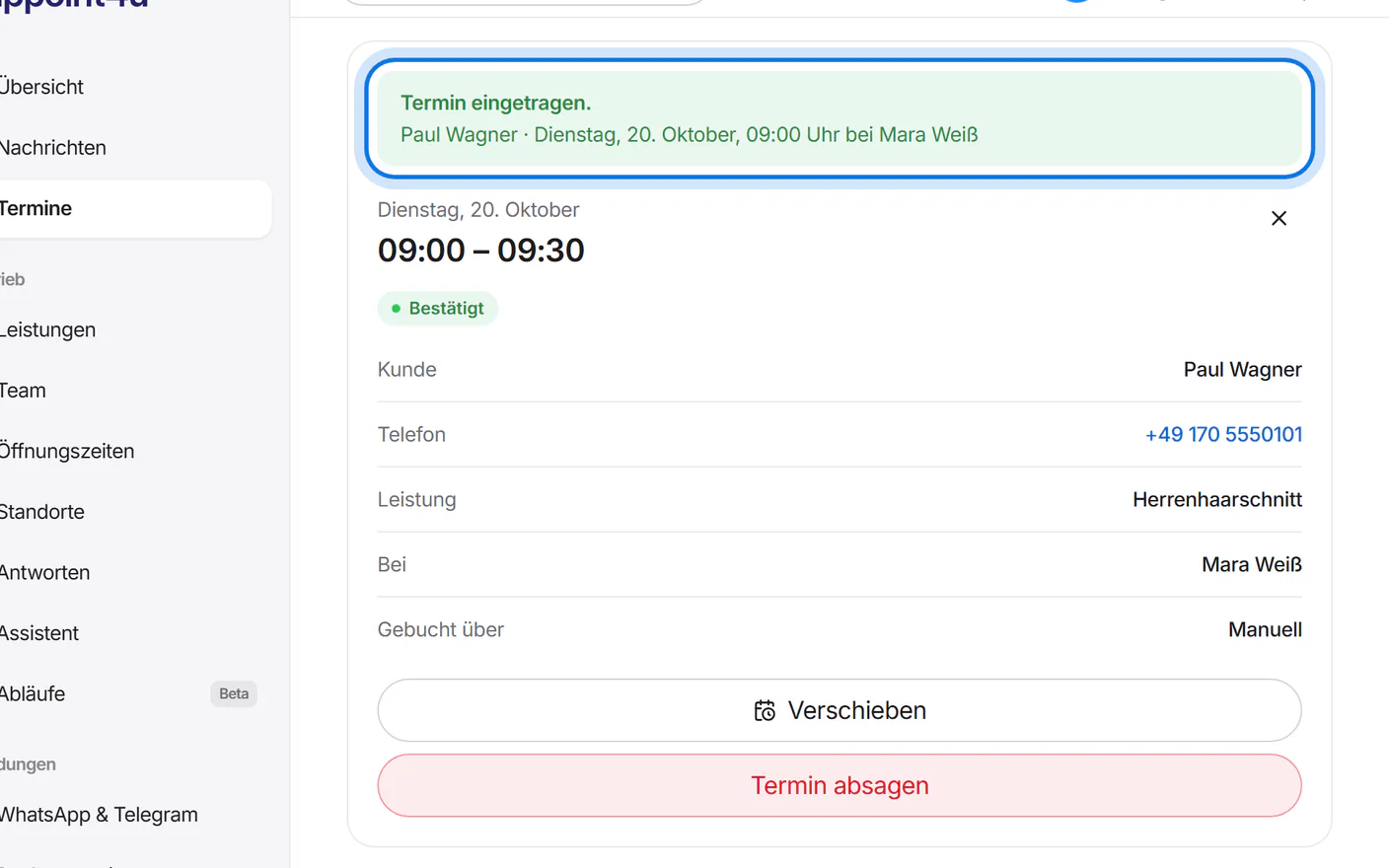
Tap “Termin eintragen”. The appointment is in the calendar – your assistant no longer offers that time.


Move and cancel
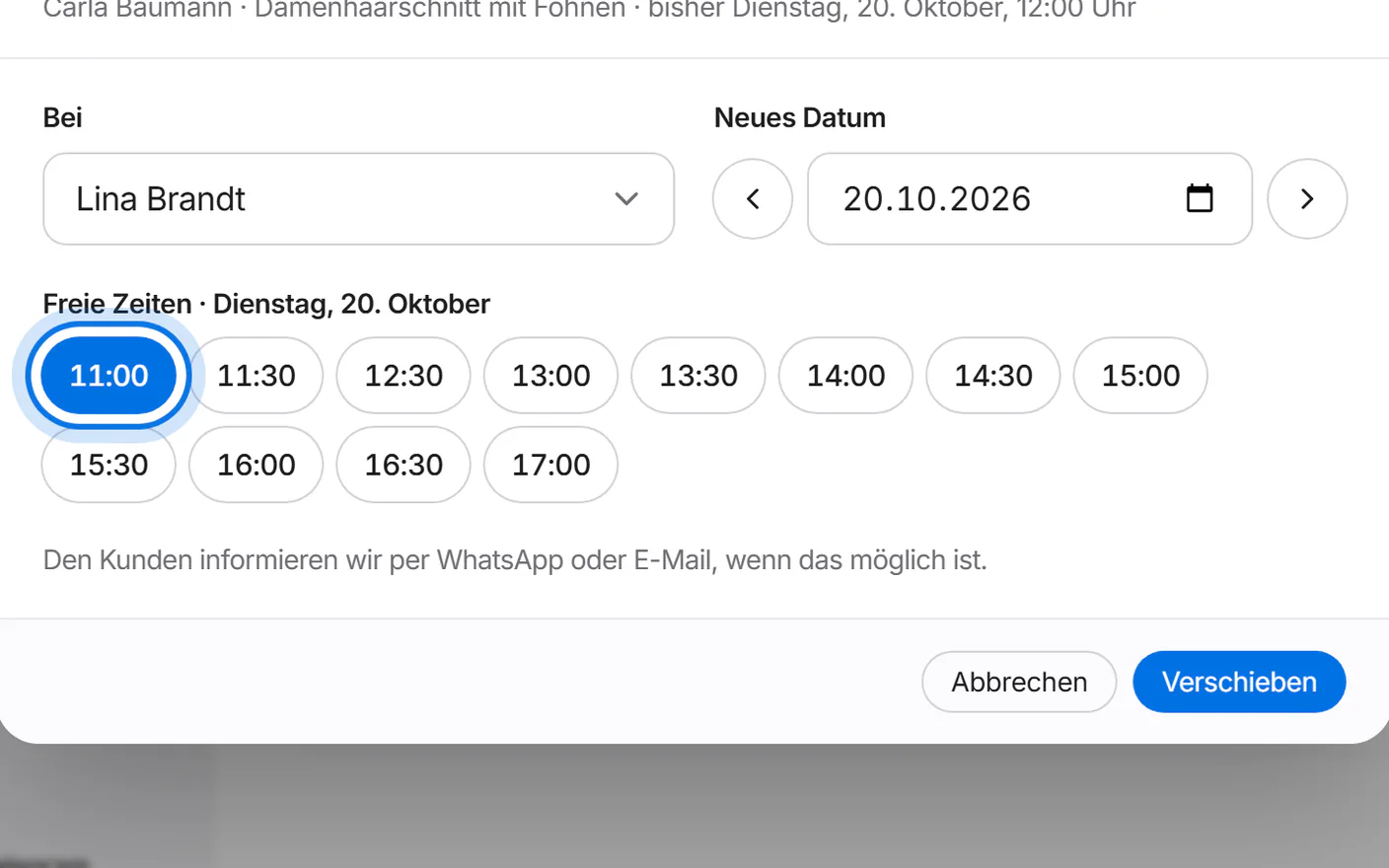
In the appointment, tap “Verschieben” (move), choose the person, day and a free time, and tap “Verschieben”.
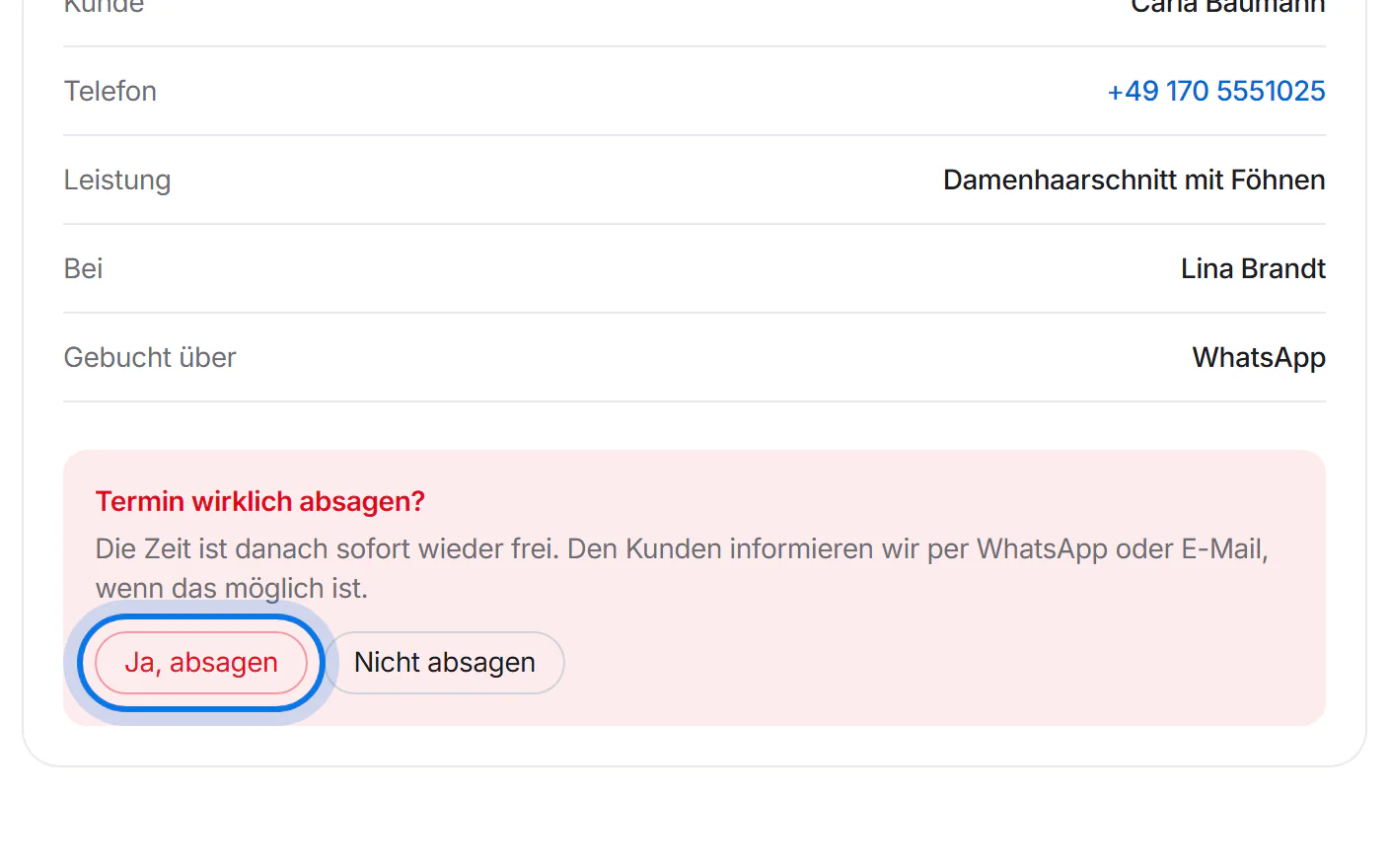
To cancel, tap “Termin absagen” (cancel appointment) and confirm with “Ja, absagen” (yes, cancel). The time is free again right away.
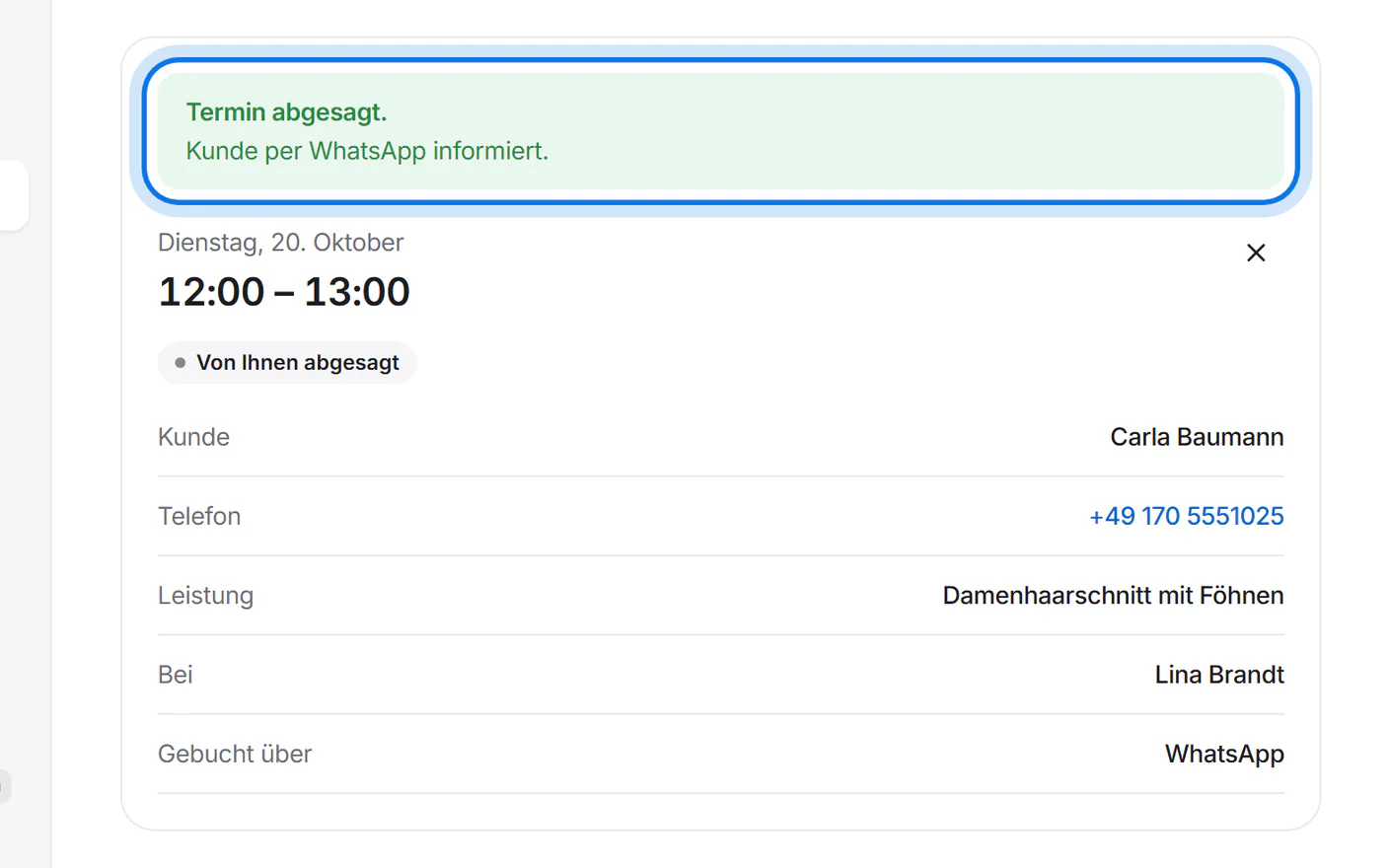
Afterwards the calendar shows whether your customer was informed by WhatsApp or email. If neither worked, you see their number to call them.


Absences and breaks
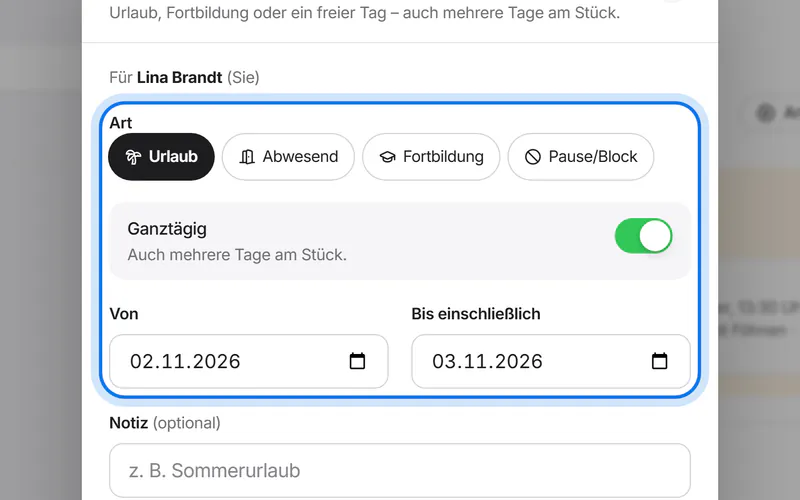
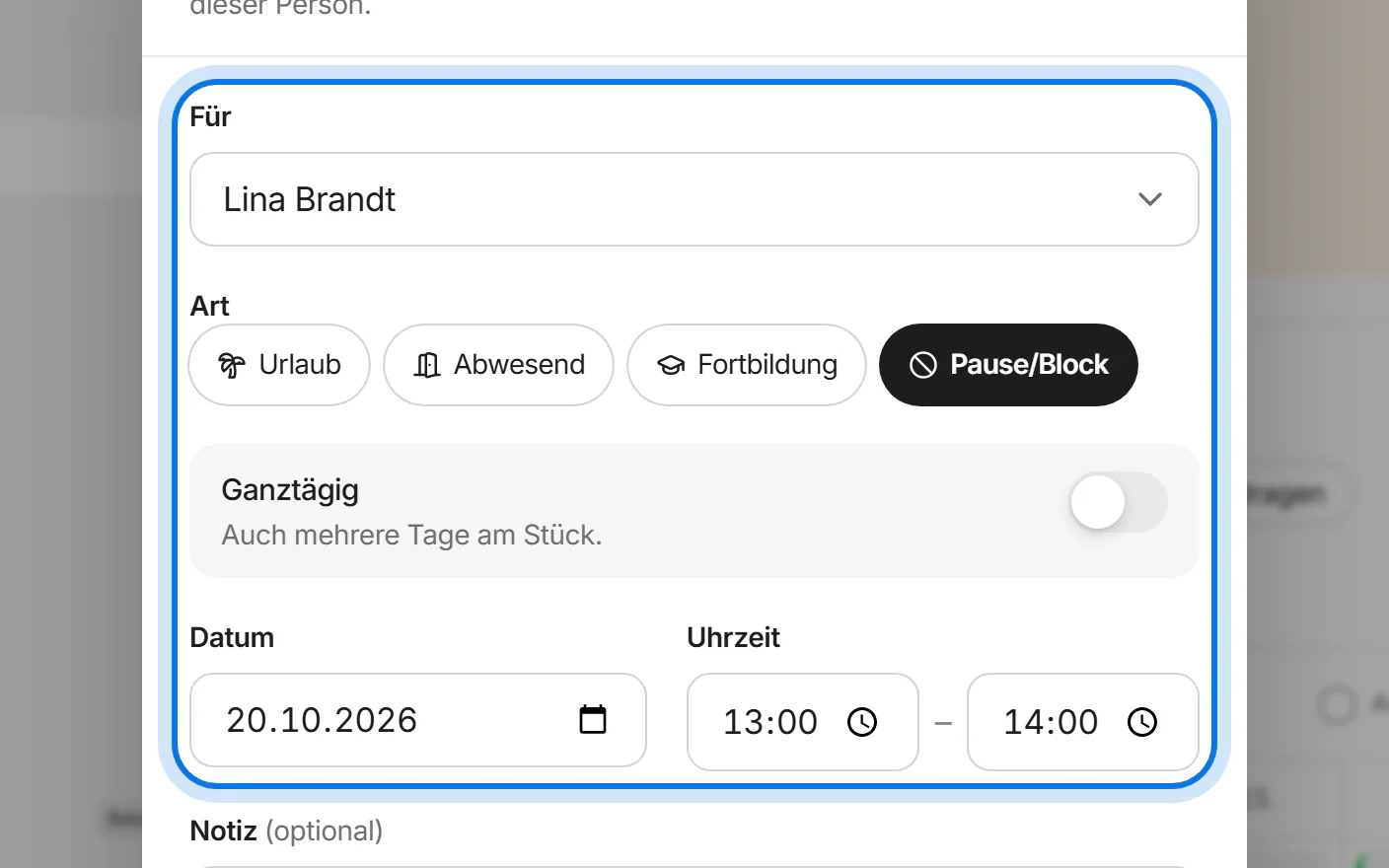
For time off, tap “Urlaub eintragen” (enter time off); for a break or an appointment away, tap “Zeit blockieren” (block time). Choose the person under “Für” (for), then the type – Urlaub (holiday), Abwesend (away), Fortbildung (training) or Pause/Block – and the time.
Tap “Blockieren” (block) or “Eintragen” (enter). The entry appears in the week view – hatched when it is by the hour, dashed for open requests. Tap it to edit or delete it.