Opening hours and lunch break
Your assistant tells customers these hours and only offers appointments while you are open.
6 steps about 3 min
Step by step
Open “Öffnungszeiten” (opening hours) in the menu on the left.
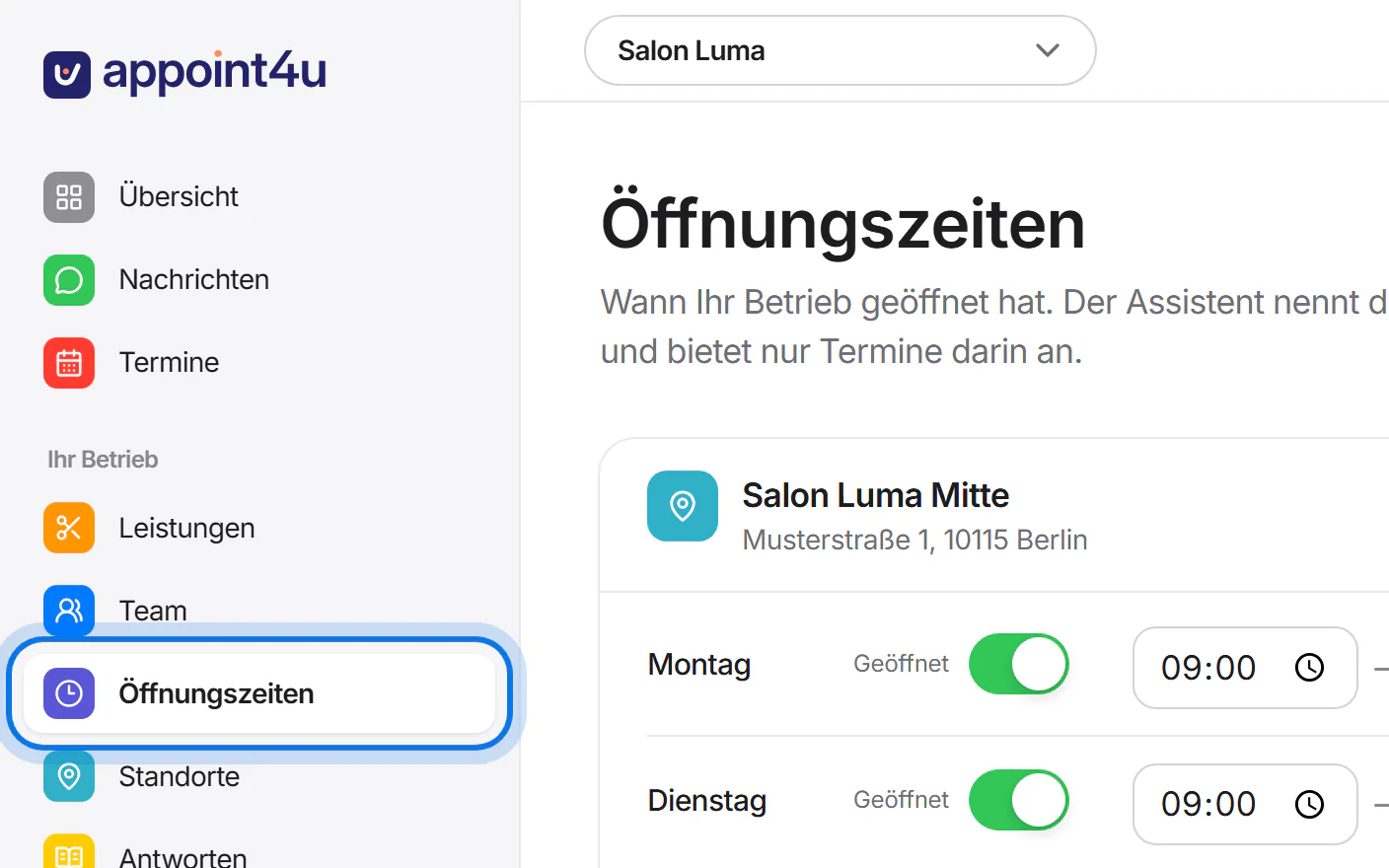
Switch on every day you are open and enter the start and end time.
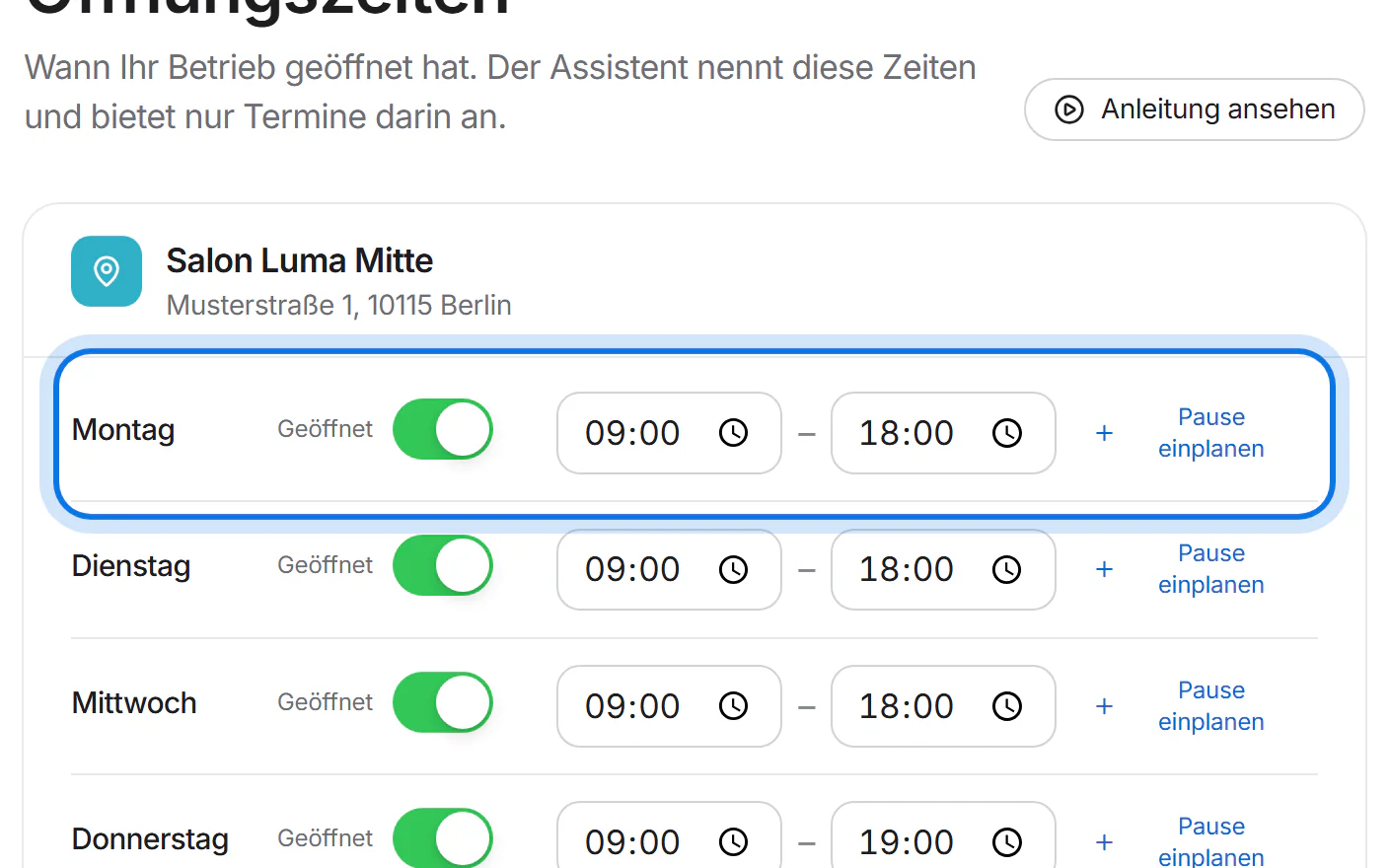
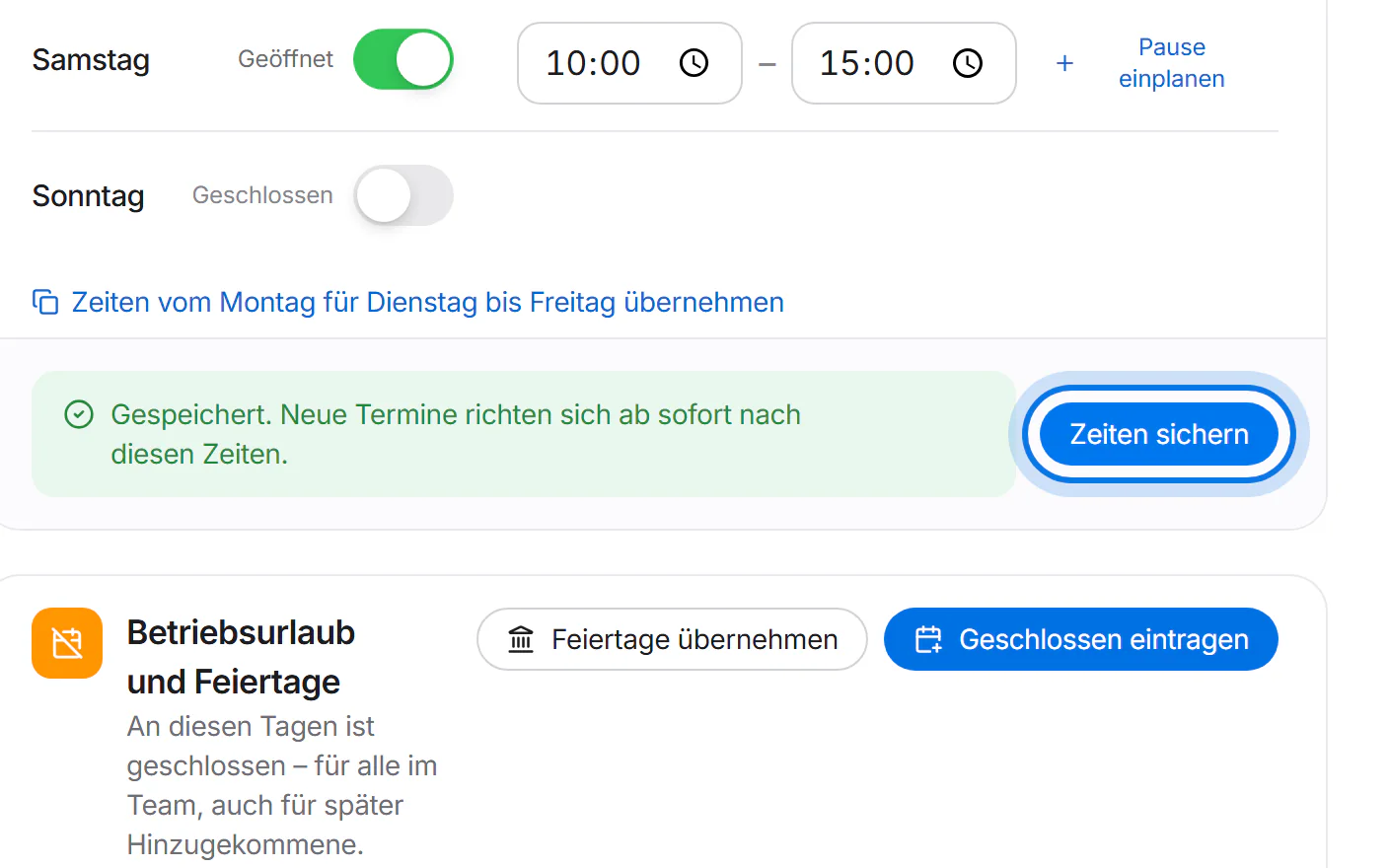
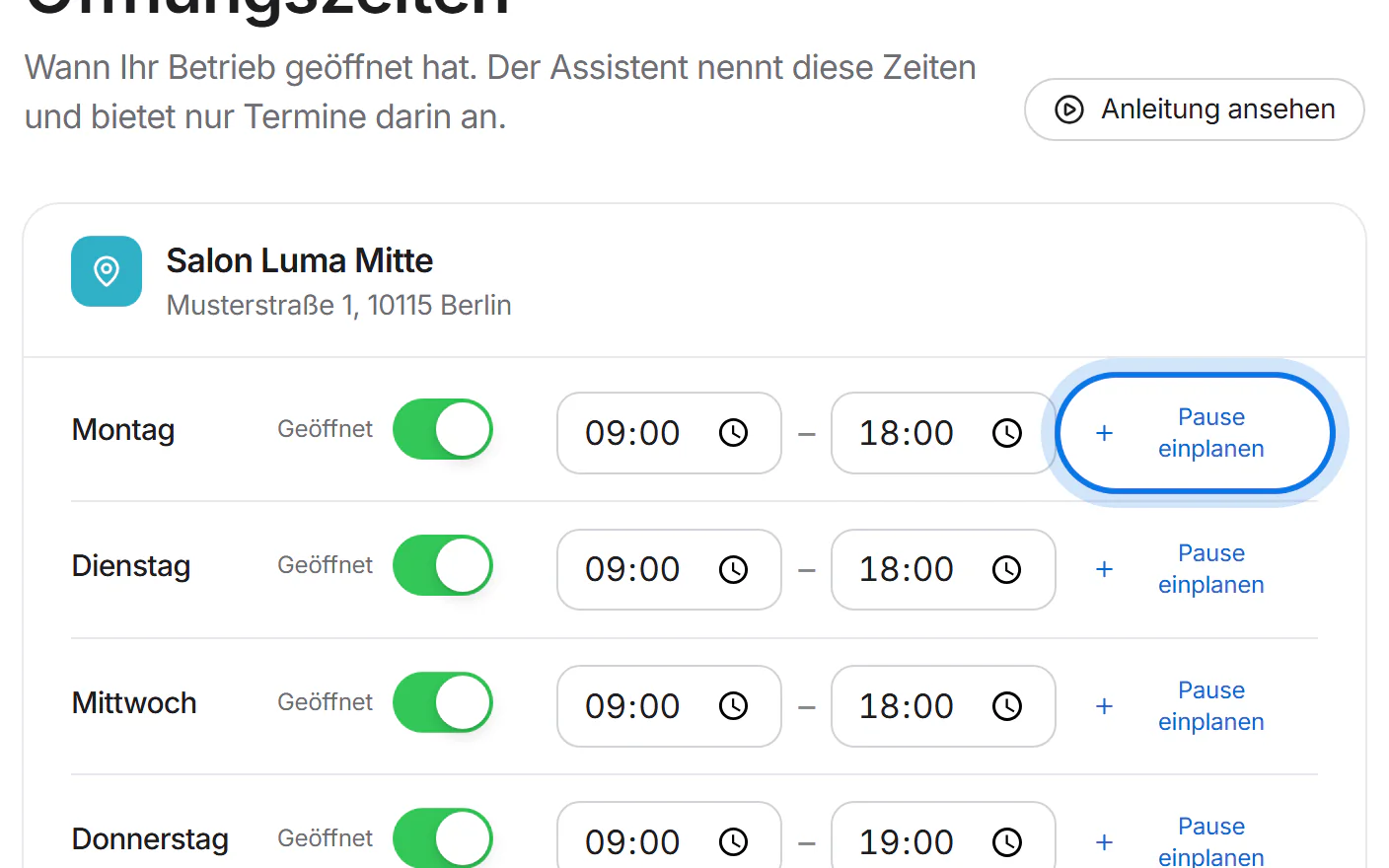
For a lunch break, tap “Pause einplanen” (add break) next to the day.
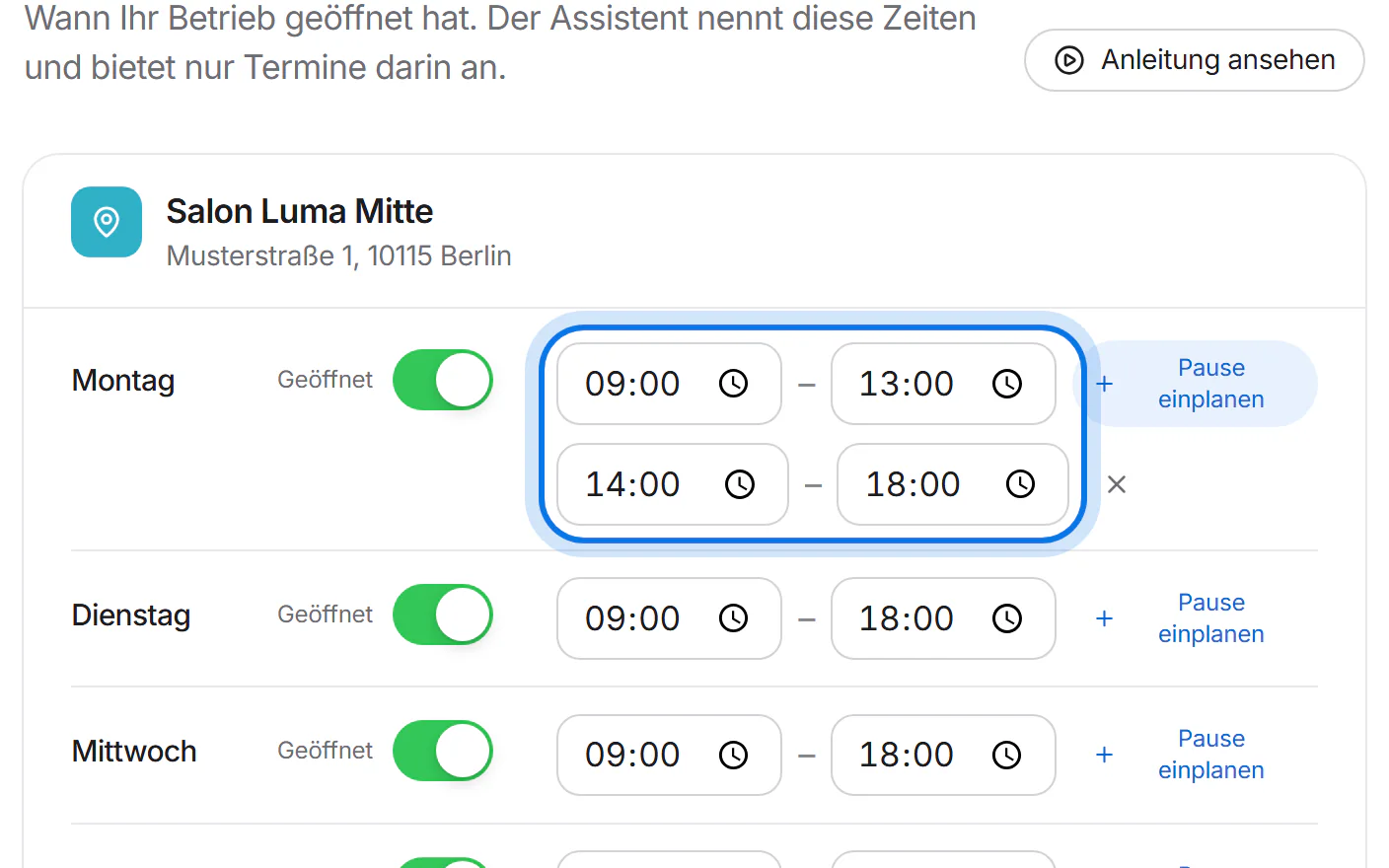
Enter the two time windows, for example 09:00 to 13:00 and 14:00 to 18:00.
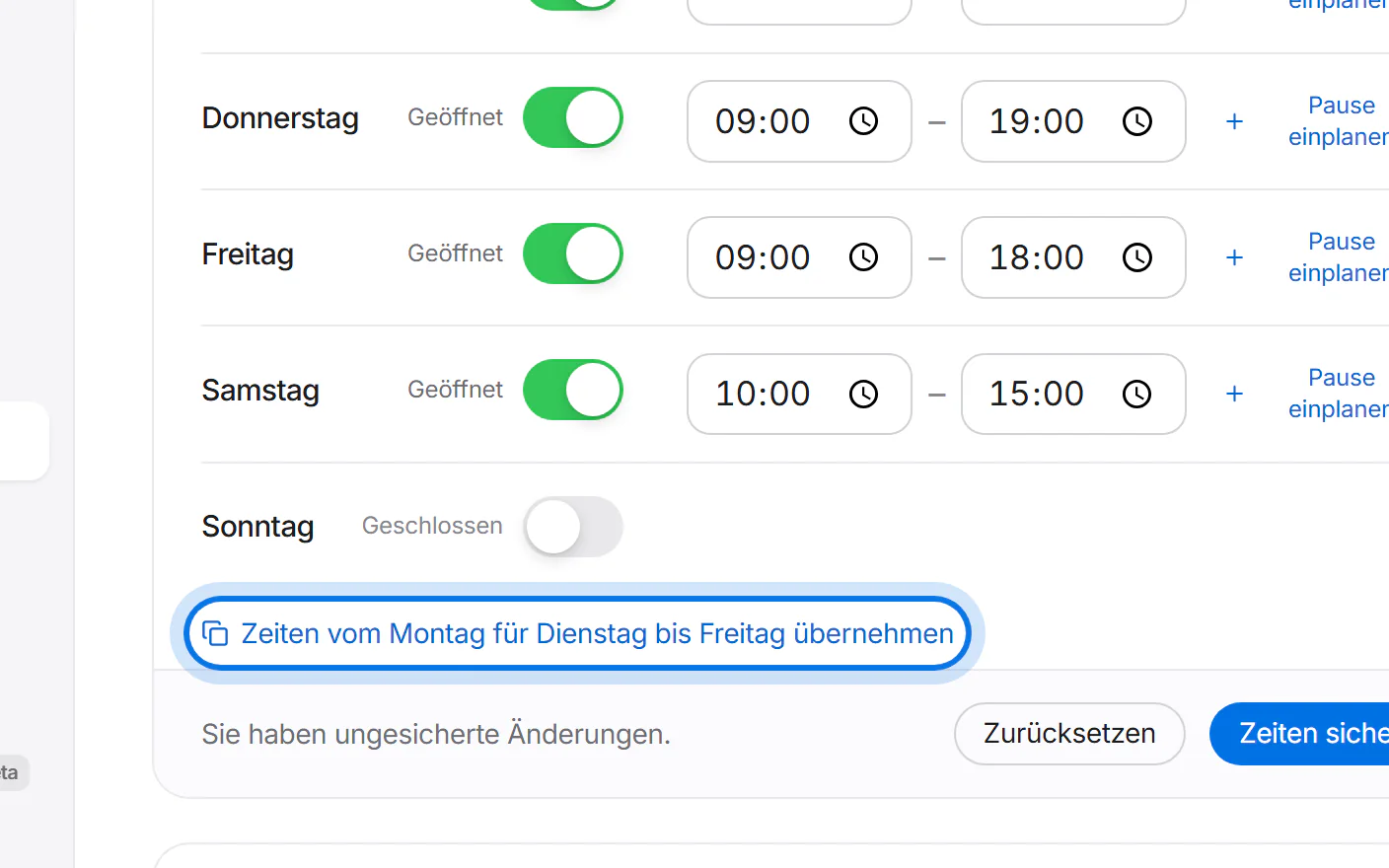
Same for the whole week? Tap “Zeiten vom Montag für Dienstag bis Freitag übernehmen” (copy Monday to Tuesday–Friday).
Tap “Zeiten sichern” (save hours). New appointments follow them right away.